Settings screen
Your business details, regional formats, theme, backups, data, licence and logs.
On this page
- Choose licence file…
- Add person
- Billing address
- Mailing address
- Company name
- Person
- Delete person
- Edit person
- Phone numbers
- Billing same as mailing
- Save
- Save
- Browse for backup folder
- Backup folder
- Backup interval
- Back up now
- Copies to keep
- Business name
- Settings category
- Clock
- Copy report
- Create business
- Currency symbol
- Daily target
- Date format
- Decimal mark
- Close import message
- Import data…
- Licence box
- Load pasted licence
- Open log
- Settings page
- Remove licence
- Try again
- Save backup settings
- Save daily target
- Save weekly target
- Send to support
- Symbol position
- Theme
- Thousands separator
- Weekly target
- Support message
- Close
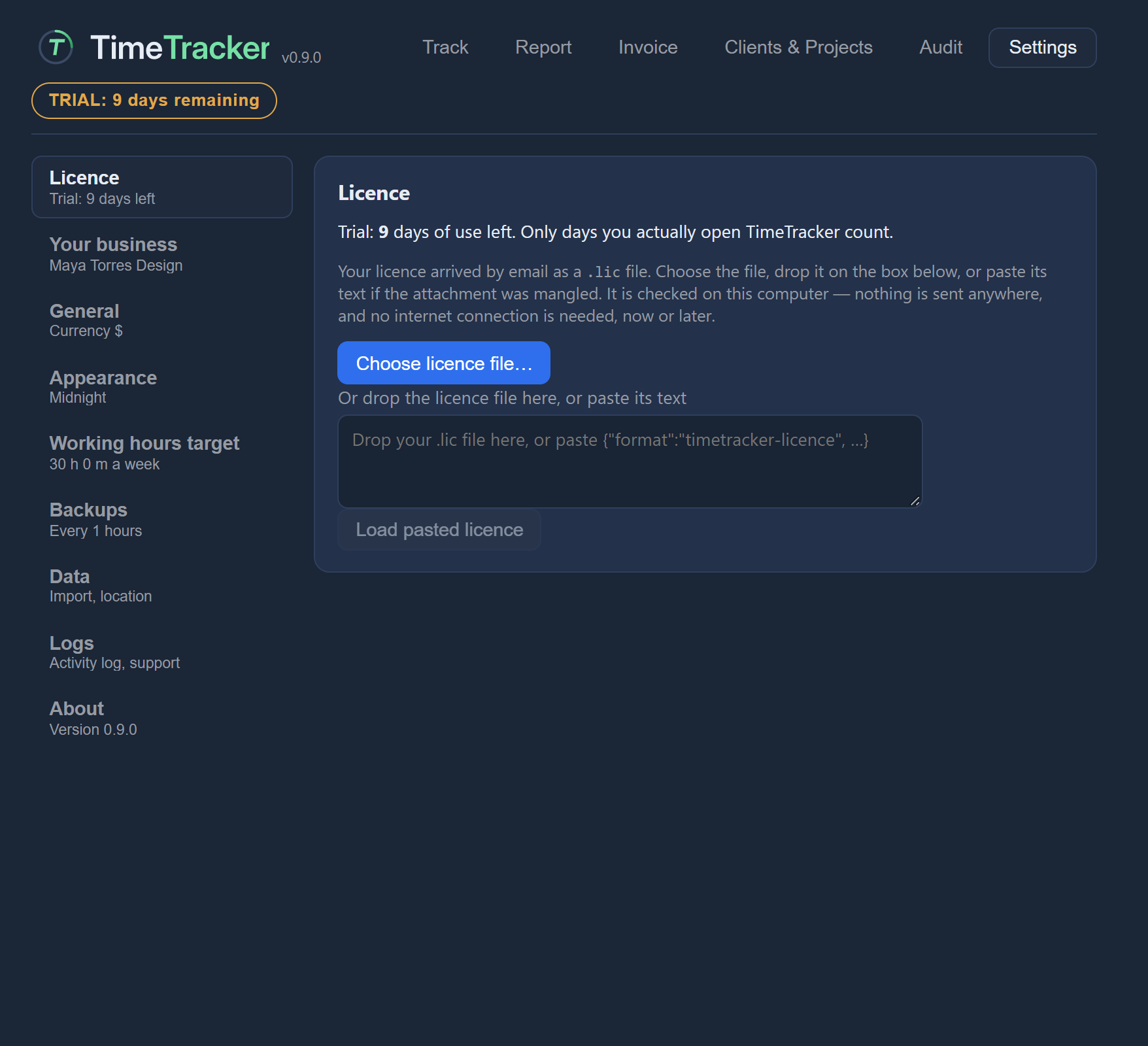
Choose licence file…
Loads the licence file you received after buying. It is checked on this computer; nothing is sent anywhere.
Example. Maya saves the .lic file from her email to her desktop, then chooses it here.
Add person
Adds a person at this company by name, email or both. A role inbox such as billing@acme.com needs no name. While editing, the button saves the change and Cancel drops it.
Example. Maya adds Priya with her email address, and accounts@harbourbakery.example with no name.
Billing address
For a client: the address its invoices are addressed to, when it differs from the mailing address. Your own business does not use this one.
Example. Brightleaf Bakery's invoices go to the owner's office, not the shop, so Maya enters the office as the billing address.
Mailing address
The mailing address, over as many lines as you like. Invoices to a client use the billing address and fall back to this one when there is no billing address. Your own invoices' From block uses this one.
Example. Maya enters Brightleaf Bakery's shop address over three lines.
Company name
The company's name. It is required. Two companies can share a name; one that does is flagged so you can tell them apart.
Example. Maya enters "Brightleaf Bakery" exactly as it should appear on her invoices.
Person
A person at this company, shown by name or email. An invoice can be addressed to one or more of them, and each can have their own phone numbers.
Example. Priya is listed under Brightleaf Bakery, so Maya can address invoices to her.
Delete person
Deletes this person after you confirm. Invoices already issued still show the name.
Example. Sam leaves Brightleaf Bakery, so Maya deletes him. Last month's invoice still shows his name.
Edit person
Loads this person into the form below so you can change their name or email.
Example. Priya has a new email address, so Maya edits her and saves.
Phone numbers
Phone numbers for the company itself. Each person below keeps their own numbers separately.
Example. Maya adds the bakery's shop phone here and keeps Priya's mobile with Priya.
Billing same as mailing
Tick this when billing and mailing are the same address. On save no separate billing address is stored, and the mailing one is used.
Example. A smaller client bills from the same address it trades from, so Maya ticks this and enters it once.
Save
Saves the name and addresses above. People and phone numbers have their own buttons.
Example. Maya saves Brightleaf Bakery's new billing address so the next invoice uses it.
Save
Saves how money, dates and times are written. It changes the display only; nothing stored is rewritten, and issued invoices keep their own formats.
Example. Maya switches to the 24-hour clock in Settings → General and presses Save. Her issued invoices keep the format they were issued with.
Browse for backup folder
Opens a folder chooser for the backup folder.
Example. Maya browses to a folder on the external drive on her desk.
Backup folder
The folder automatic backups are written to. With no folder chosen, backups are off. The folder is checked when you save.
Example. Maya points backups at her external drive, so a broken laptop doesn't take her backups with it.
Backup interval
How often a backup is made automatically. Set the number to 0 to turn automatic backups off.
Example. Maya works on several clients a day, so she sets 1 hour.
Back up now
Makes a complete backup straight away, using the saved settings. Save any changed backup settings first.
Example. Before Maya tidies a month of old entries, she presses Back up now so she can go back if she needs to. If she has just changed the folder, she saves the backup settings first.
Copies to keep
How many backups to keep. When there are more, the oldest ones TimeTracker created are deleted first; other files in the folder are left alone.
Example. Maya keeps 48 backups, which with hourly backups covers about two days of work.
Business name
The name of your own business. It is printed as the sender on every invoice. Addresses, phone numbers and people are added after it is created.
Example. Maya enters "Maya Torres Design", the name she wants Brightleaf Bakery to see on invoices.
Settings category
Switches the Settings page on the right to this category. The line under a name summarises its current state.
Example. To change her weekly target, Maya clicks Working hours target; for the theme, Appearance.
Clock
Whether times are written on a 24-hour or a 12-hour clock. Stored times are not changed.
Example. Maya writes times as 14:30, so she picks the 24-hour clock.
Copy report
Copies the support report to the clipboard as plain text, to paste into web mail. Nothing is sent.
Example. Maya uses web mail, so she copies the report and pastes it into a new email to the address shown.
Create business
Creates your business under the name typed. Invoices need one as their sender.
Example. Maya types her business name and creates it, then adds her studio address.
Currency symbol
The symbol shown on money, such as $ or €. It changes how amounts are displayed; issued invoices keep the symbol they were issued with.
Example. Maya starts billing in euros, so she switches the symbol to €. Invoices she issued before keep the symbol they had.
Daily target
How long your working day is. When the budget on the Track tab shows the time left in days, it counts days of this length.
Example. Maya's working day is 7 hours 30 minutes, so budget time left in days is counted in days of that length.
Date format
The order and separators used when dates are written. Each example shows exactly how a date will look.
Example. Maya picks the format that matches how she writes dates on her own paperwork.
Decimal mark
The character that separates whole amounts from cents: a point or a comma.
Example. Maya writes amounts like 1,250.00, so she keeps the point as her decimal mark.
Close import message
Hides this import message.
Example. Maya has read the import message and closes it.
Import data…
Replaces ALL current data with a backup you choose, after you confirm. Your current data is copied aside first, so an import can be undone.
Example. Maya's new laptop is set up, so she imports the backup she made on her old one. If she picks the wrong file, she can undo it with the before-import copy.
Licence box
Drop the .lic file onto this box and it is checked and loaded at once, or paste its text and press Load pasted licence.
Example. Maya drags the .lic file from her email straight onto the box.
Load pasted licence
Checks the pasted licence text on this computer and loads it if it is genuine. Nothing is sent anywhere.
Example. The email attachment arrived damaged, so Maya pastes the licence text into the box and loads it.
Open log
Opens the local activity log in whatever this computer uses for log files. The log records what happened, never what you typed, and never leaves this computer.
Example. Before sending anything to support, Maya opens the log to see what it holds.
Settings page
The page for the chosen Settings category. Point at a control to see what it does.
Example. Maya chooses Backups on the left, and its settings appear here.
Remove licence
Removes the licence from this computer after you confirm. Your data is not affected; if the trial is used up, new tasks cannot be started until a licence is loaded again.
Example. Maya is retiring her old laptop, so she removes the licence from it.
Try again
Tries again to load the settings.
Example. Settings didn't load the first time, so Maya tries again before doing anything else.
Save backup settings
Saves the backup folder, schedule and number to keep. The folder must be set for the schedule to do anything.
Example. Maya chooses her external drive, sets hourly backups and 48 to keep, then saves.
Save daily target
Saves the daily target; disabled until you change it. A day must be at least one minute and no more than 24 hours.
Example. Maya changes her day from 8 hours to 7 hours 30 minutes and saves.
Save weekly target
Saves the weekly target. With no target saved, the fields show a suggestion that is not stored until you press this, so it can be pressed straight away. Once a target is saved, it stays disabled until you change it. Set both hours and minutes to 0 to clear the target.
Example. The suggested target is close to Maya's real week, so she sets it to 30 hours and saves.
Send to support
Writes a support report file and opens an email draft to the support address. Nothing is sent unless you send it, and you attach the file yourself.
Example. Maya's PDF Preview won't open, so she sends a report to support and attaches the file it wrote.
Symbol position
Whether the currency symbol is written before or after the amount.
Example. Maya bills in euros and writes amounts as 1.250,00 €, so she puts the symbol after the amount.
Theme
Switches the application to this colour theme. The choice is remembered and changes nothing about your data.
Example. Maya works by a bright window in the mornings, so she switches to Light.
Thousands separator
What groups the thousands in a large amount: a comma, a point, a space, or nothing.
Example. Maya prefers 1,000 to 1000 on her invoices, so she picks a comma.
Weekly target
How many hours you intend to work each week, across every project. The Track tab shows the week so far against it. Weeks run Monday to Sunday.
Example. Maya works four days a week, so she sets 30 hours rather than a full-time week.
Support message
What happened after you pressed Send to support or Copy report: the address to write to and, for Send to support, the report file to attach. It stays here until you close it or leave this page.
Example. After sending to support, Maya reads the message to see where the report file is so she can attach it.
Close
Closes this message. The report file is not deleted.
Example. Maya has attached the file and sent her email, so she closes the message. The file is still in her data folder.