Clients & Projects screen
Where you keep your clients, their contacts, and the projects you bill them for.
On this page
- Add client
- Budget forecast
- Add project
- Add project with no client
- Archive client
- Contact information
- Delete client
- Open client
- Clients
- New client name
- No client
- Projects
- Restore client
- Add person
- Billing address
- Mailing address
- Company name
- Person
- Delete person
- Edit person
- Phone numbers
- Billing same as mailing
- Save
- Archive project
- Budget
- Budget standing
- Client
- Colour
- Custom colour
- Delete project
- Open project
- Project name
- Intended pace
- Hourly rate
- Restore project
- Save
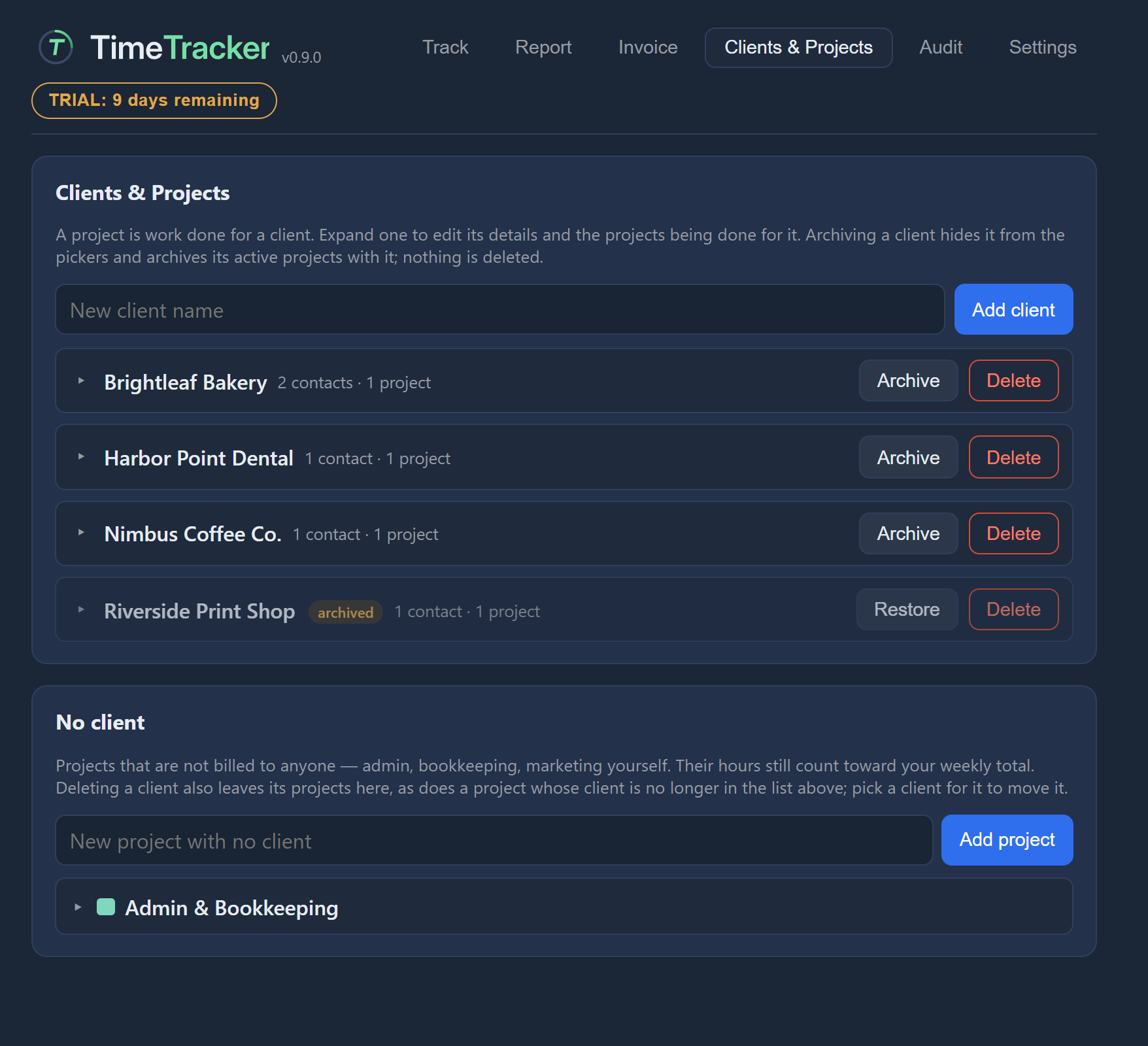
Add client
Adds a client under the name typed beside it. Addresses, contacts and projects are filled in once it is created.
Example. Maya types "Brightleaf Bakery" and adds it, then opens it to fill in the address.
Budget forecast
When the budget would run out at your intended pace and at your actual pace, and whether you are ahead of or behind plan. These are estimates, not commitments.
Example. Maya sees she is behind plan on "Brightleaf Website" and that the budget runs out sooner at her actual pace, so she raises the scope with Brightleaf Bakery now.
Add project
Adds a project for this client under the name typed, then press Enter or Add project. If a project with that name already exists, you are told and nothing new is made.
Example. Brightleaf Bakery asks for monthly updates, so Maya adds a "Routine updates" project under the client.
Add project with no client
Adds a project with no client under the name typed. Choose a client for it later to move it under that client.
Example. Maya adds a "Marketing" project with no client for the time she spends on her own portfolio.
Archive client
Hides this client from the pickers and archives its active projects with it. You are told first how many projects and unbilled hours are affected. Nothing is deleted and it can be restored.
Example. Maya hasn't worked for a past client in a year, so she archives it to tidy her lists. Its history stays.
Contact information
Opens this client's name, addresses, phone numbers and the people at the company.
Example. Maya opens Brightleaf Bakery's contact information to update the billing address after they move office.
Delete client
Deletes this client after you confirm. Its projects are kept but unlinked, and move to No client; their time entries are kept. Invoices already issued keep their saved copy.
Example. Maya added a client twice by mistake, so she deletes the duplicate.
Open client
Opens or closes this client, revealing its Contact information and Projects sections. Only one client is open at a time.
Example. Maya opens Brightleaf Bakery to add a new project.
Clients
Your clients, each with the projects done for them. Expand a client to edit its details and projects. Archiving a client hides it from the pickers; nothing is deleted.
Example. Maya keeps all five of her clients here, Brightleaf Bakery among them, each with its projects underneath.
New client name
Type a new client's name, then press Enter or Add client. Addresses, people and projects are filled in once it exists.
Example. Maya types "Brightleaf Bakery" and presses Enter.
No client
Projects that are not billed to anyone, such as admin or bookkeeping. Their hours still count toward your weekly total. Deleting a client leaves its projects here.
Example. Maya's "Admin" and "Marketing" projects live here. They count toward her week but never appear on an invoice.
Projects
Opens the projects done for this client. Only one project is open for editing at a time.
Example. Maya opens Brightleaf Bakery's projects to change the rate on "Routine updates".
Restore client
Brings this archived client back into the pickers. Projects that were archived along with it come back too; projects you archived yourself stay archived.
Example. An old client comes back with new work, so Maya restores them.
Add person
Adds a person at this company by name, email or both. A role inbox such as billing@acme.com needs no name. While editing, the button saves the change and Cancel drops it.
Example. Maya adds Priya with her email address, and accounts@harbourbakery.example with no name.
Billing address
For a client: the address its invoices are addressed to, when it differs from the mailing address. Your own business does not use this one.
Example. Brightleaf Bakery's invoices go to the owner's office, not the shop, so Maya enters the office as the billing address.
Mailing address
The mailing address, over as many lines as you like. Invoices to a client use the billing address and fall back to this one when there is no billing address. Your own invoices' From block uses this one.
Example. Maya enters Brightleaf Bakery's shop address over three lines.
Company name
The company's name. It is required. Two companies can share a name; one that does is flagged so you can tell them apart.
Example. Maya enters "Brightleaf Bakery" exactly as it should appear on her invoices.
Person
A person at this company, shown by name or email. An invoice can be addressed to one or more of them, and each can have their own phone numbers.
Example. Priya is listed under Brightleaf Bakery, so Maya can address invoices to her.
Delete person
Deletes this person after you confirm. Invoices already issued still show the name.
Example. Sam leaves Brightleaf Bakery, so Maya deletes him. Last month's invoice still shows his name.
Edit person
Loads this person into the form below so you can change their name or email.
Example. Priya has a new email address, so Maya edits her and saves.
Phone numbers
Phone numbers for the company itself. Each person below keeps their own numbers separately.
Example. Maya adds the bakery's shop phone here and keeps Priya's mobile with Priya.
Billing same as mailing
Tick this when billing and mailing are the same address. On save no separate billing address is stored, and the mailing one is used.
Example. A smaller client bills from the same address it trades from, so Maya ticks this and enters it once.
Save
Saves the name and addresses above. People and phone numbers have their own buttons.
Example. Maya saves Brightleaf Bakery's new billing address so the next invoice uses it.
Archive project
Hides this project from the pickers. Its entries and history are kept, and it can be restored.
Example. The menu page is finished and paid for, so Maya archives the project. Its hours still show in old reports.
Budget
The total agreed contract value. Leave it empty for no budget. With a budget set, the remaining amount and hours are shown below.
Example. Maya agrees a fixed price for Brightleaf Bakery's website and enters that as the budget on "Brightleaf Website".
Budget standing
Where the contract budget stands: what remains in money and hours, how much is used, and how much has been billed against how much is tracked but not yet invoiced.
Example. Maya sees she has used just over half the "Brightleaf Website" budget, and that part of it isn't invoiced yet.
Client
The client this project is done for. Invoices bill a client's projects. Choose no client for work that is never billed. A change takes effect when you press Save.
Example. A project Maya started with no client turns into paid work for Brightleaf Bakery, so she sets the client and saves.
Colour
The colour used beside this project's entries so the work is easy to tell apart. It applies the moment you click, with no Save. You are warned if a colour is hard to tell from another or hard to see, but it is never refused.
Example. Maya gives "Brightleaf Website" a warm orange so its entries stand out in the week's list.
Custom colour
Choose any other colour for this project. It applies at once, with no Save.
Example. Maya picks Brightleaf Bakery's own brand blue for their project.
Delete project
Deletes this project after you confirm. It is refused when the project has time entries; archive it instead.
Example. Maya made a project by typing a name wrongly and never tracked time on it, so she deletes it.
Open project
Shows or hides this project's details and settings. Only one project is open at a time.
Example. Maya opens "Brightleaf Website" to check its rate.
Project name
The project's name. A change takes effect when you press Save.
Example. Maya renames "Website" to "Brightleaf Website 2026" so it's clear on reports.
Intended pace
The hours per week you intend to work on this contract. It is used for the forecast of when the budget will run out at your intended pace.
Example. Maya plans to spend 10 hours a week on "Brightleaf Website", so she enters 10.
Hourly rate
The hourly rate this project is billed at on invoices. It belongs to the project, so one client can have projects at different rates. A change takes effect when you press Save.
Example. Maya charges more for design than for routine updates, so her two Brightleaf Bakery projects have different rates.
Restore project
Brings this archived project back into the pickers.
Example. Brightleaf Bakery wants a new menu, so Maya restores the archived menu page project.
Save
Saves the name, client, rate, budget and pace. It is available only after you change one of them.
Example. Maya raises the rate on "Routine updates" and saves. Invoices already issued keep the old figures.