Getting started
What to do the first time you open TimeTracker, and what you can leave until later.
On this page
At a glance
- Nothing is required to start: no account, no sign-in, no set-up wizard.
- You can track your first hour within a minute of opening the app.
- Clients, projects, rates and budgets can wait until you need them.
- Your business details are only needed for invoices.
- A ? button explains any control in the app.
TimeTracker asks very little of you at the start. Track your first task now, and fill in the rest only when you need it.
The first time you open it
Nothing is required. There is no account to create, no sign-in and no set-up wizard.
You can add clients, projects, rates and budgets whenever you like. You don’t need any of them to start tracking time.
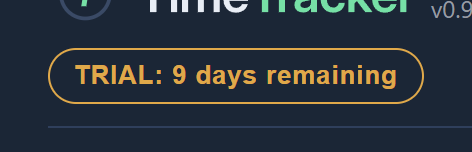
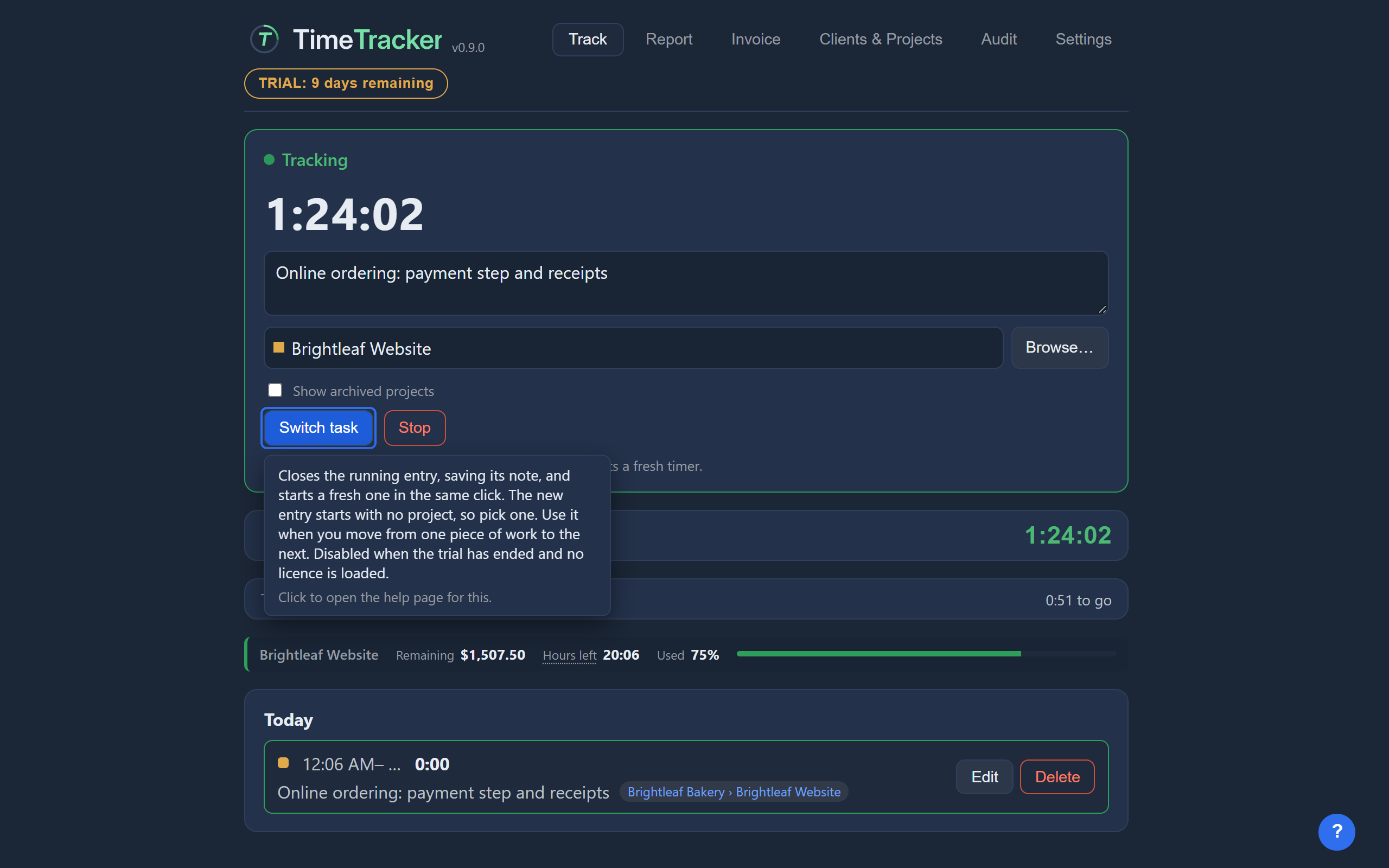
TimeTracker opens on the Track tab, ready for your first task. The badge in the header shows how many days of your free trial are left.
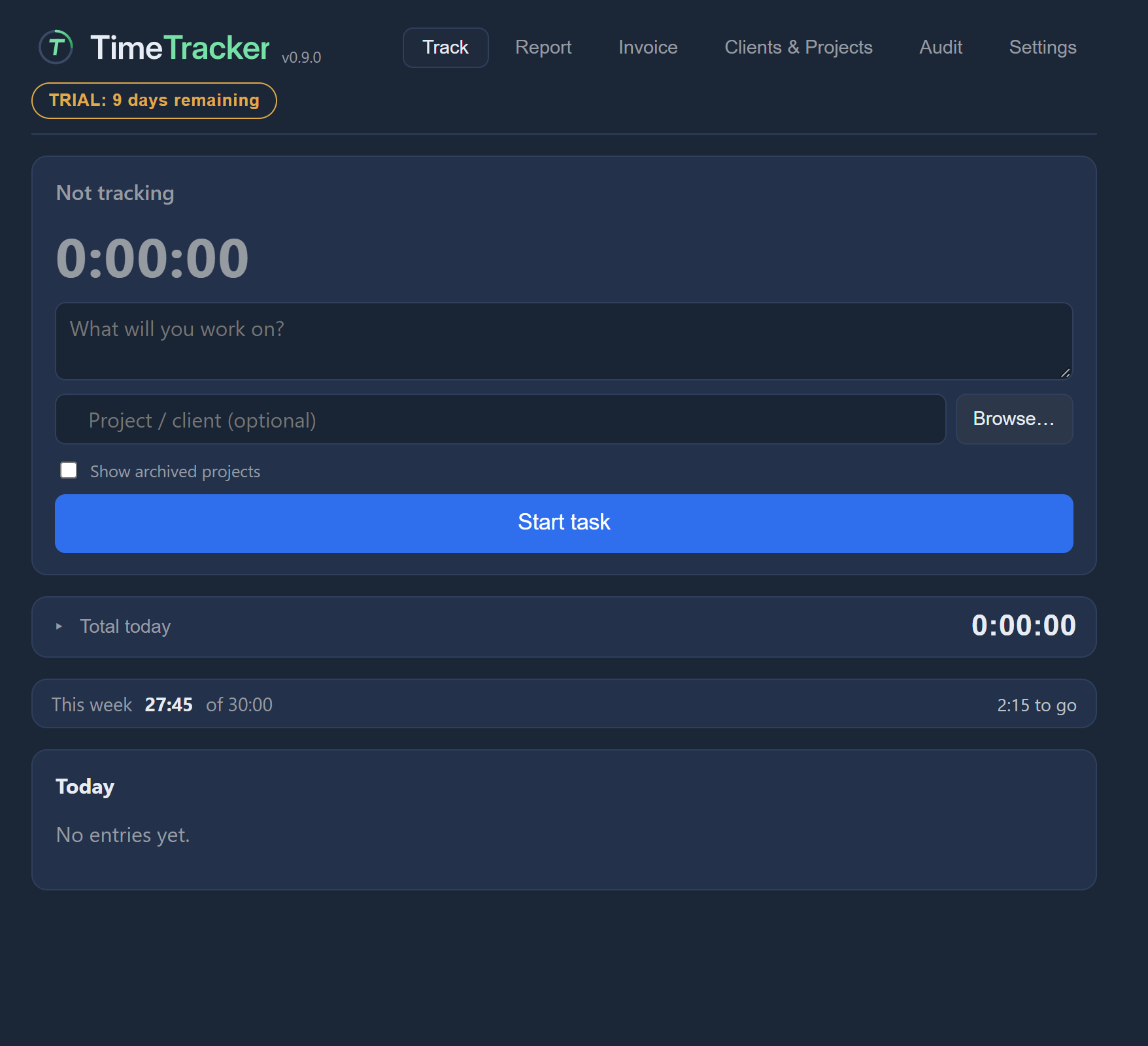
TimeTracker also starts a free trial of 10 days of use. See Trial and licence.
Find your way around the tabs
Each tab along the top does a different job.
| Tab | What it’s for |
|---|---|
| Track | Start, switch and stop the timer, and see today’s and this week’s time. |
| Report | Look back over any range of dates, fix entries, and make a PDF for your client to approve. |
| Invoice | Turn hours into a numbered invoice, and record payments. |
| Clients & Projects | The companies you work for and the projects you do for them. |
| Audit | The audit trail: the record of every change made to time that was already invoiced. |
| Settings | Your business details, targets, formats, theme, backups, data, licence and logs. |
Track your first task
- Open the Track tab.
- Type what you are working on in the box.
- Press Start task. A live timer runs while you work.
- Press Stop when you finish.
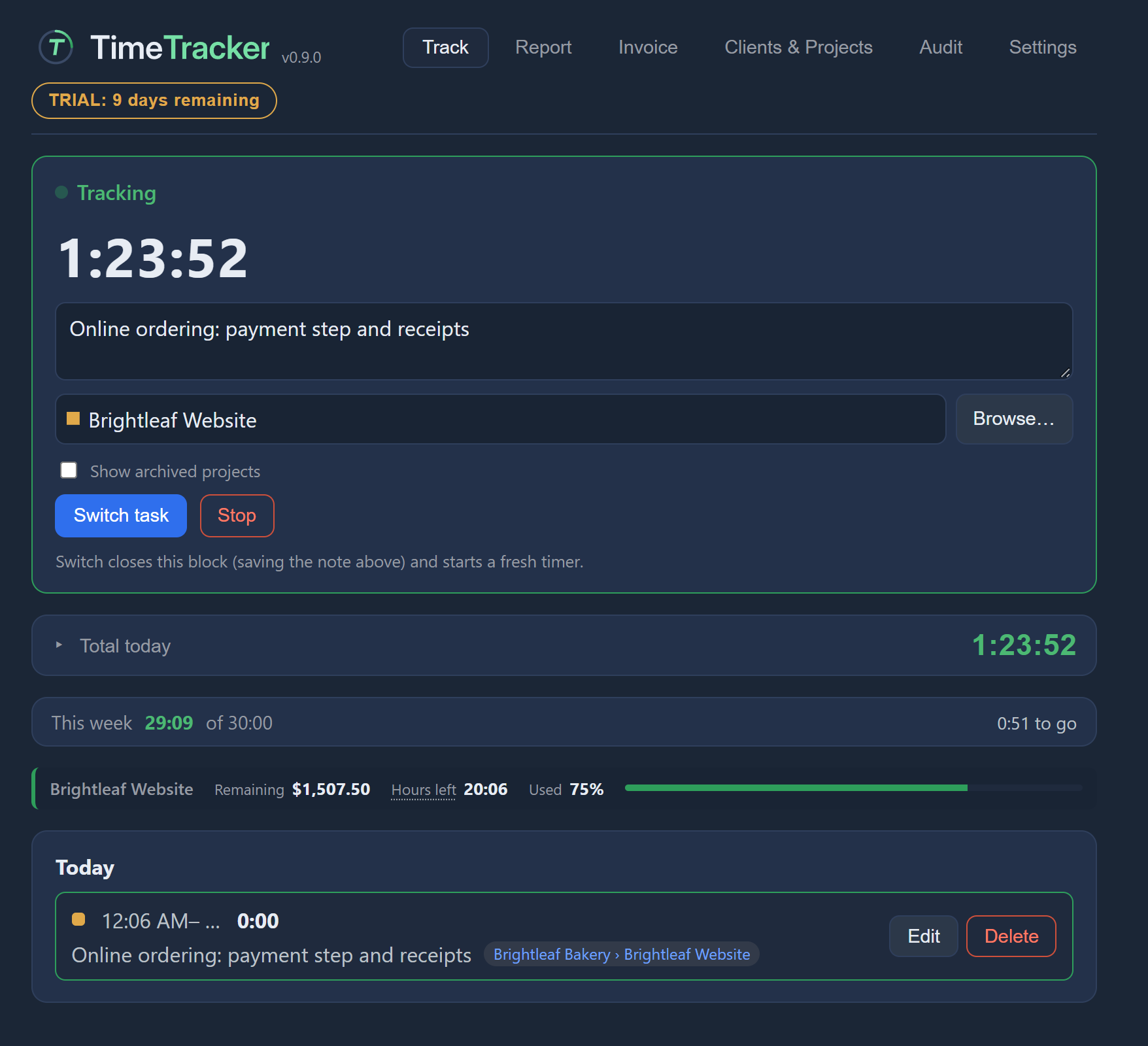
Next, read Tracking time for switching tasks, notes and projects.
Add your business details (for invoices)
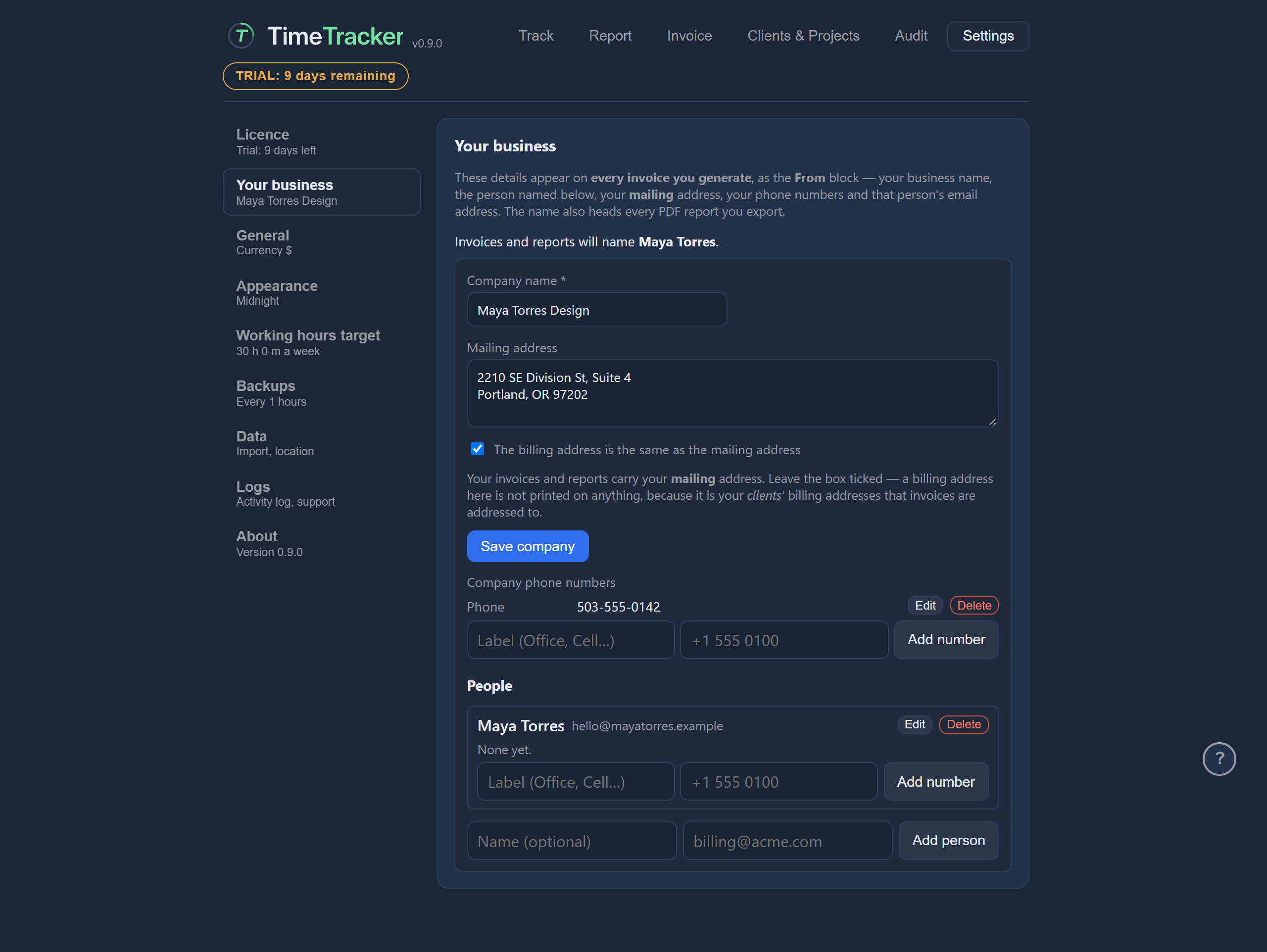
Your business details are only needed if you want TimeTracker to make invoices. You fill them in once, under Settings → Your business, and they become the “From” block on every invoice.
If you only want to track time or send reports, you can skip this. See Your business for what to fill in.
Get help inside the app
TimeTracker has a help mode. It explains any control without you leaving the app.
- Click the round ? button in the bottom-right corner of the window. In a narrow window it sits in a strip along the bottom.
- Point at any control to see a short note on what it does.
- Click the control to open its page on this website. It repeats the note and adds an example and a link to the full explanation.
Next: Tracking time.