Report screen
Where you review time for any date range, fix entries day by day, and export a PDF for approval.
On this page
- Back to report
- Day being edited
- Cancel
- Reason for change
- Check times
- Confirm delete
- Delete entry
- Cancel delete
- Reason for deleting
- Do not bill
- Do not bill badge
- Do not bill
- Edit entry
- Invoice link
- Entries
- Project
- Save
- Summary
- Start and end
- Report options
- Report dates
- Report day
- Day total
- Edit day
- Nothing tracked
- Generate
- Grand total
- Billed badge
- PDF Preview
- Project filter
- Show archived projects
- Project subtotals
- Report week
- Previous or next week
- Time entry
Back to report
Returns to the report.
Example. When Maya has fixed Tuesday's entries, she goes back to the report to see the new totals.
Day being edited
The day you are editing. Changes made here are reflected in the report when you go back.
Example. The header confirms Maya is editing Tuesday 14 October before she changes anything.
Cancel
Closes this form and discards what you typed. Do not bill, where it is offered, is the exception: it applies as soon as you tick it.
Example. Maya opens an entry, starts changing the end time, then realises it was right after all. She presses Cancel and the entry is unchanged.
Reason for change
Required because this entry is already on an invoice. The reason is kept in the audit trail.
Example. Maya moves an invoiced hour from "Brightleaf Website" to "Routine updates" and writes "Wrong project picked", so the audit trail explains the change if Brightleaf Bakery asks.
Check times
The start and end of this entry cannot both be right, so it would show a negative duration. Edit it and correct whichever time is wrong.
Example. After Maya's laptop clock reset, one entry says check times. She sets the clock right, then edits the entry's start time.
Confirm delete
Deletes this invoiced entry for good, and records the reason you gave.
Example. Maya billed Brightleaf Bakery for a meeting that was cancelled. She deletes the entry, gives the reason "Meeting cancelled, credited to client", and confirms.
Delete entry
Deletes this entry after you confirm. An entry that is already on an invoice also needs a reason, and the deletion is logged.
Example. Maya pressed Start task by mistake and has a 10-second entry with no note, so she deletes it.
Cancel delete
Closes the delete form without deleting the entry.
Example. Maya pressed delete on the wrong entry. She cancels, and nothing is lost.
Reason for deleting
Required because this entry is already on an invoice. The deletion and your reason are logged in the audit trail.
Example. Maya writes "Duplicate of the 10:00 entry" before deleting an invoiced entry, so the record shows why the hours went.
Do not bill
Marks this entry as never to be invoiced, or makes it billable again. It is not offered for an entry that is already invoiced or still running.
Example. Maya spent half an hour fixing her own mistake on the Brightleaf Bakery menu page, so she marks that entry do not bill.
Do not bill badge
This work is marked as never to be invoiced. It still counts as time worked in reports and totals.
Example. The badge reminds Maya that this half hour won't appear on Brightleaf Bakery's invoice, though it still counts in her week.
Do not bill
Marks this work as never to be invoiced, such as pro-bono time. It applies the moment you tick it, not when you press Save.
Example. Maya ticks Do not bill on a favour for a friend's café. It takes effect straight away, so it stays marked even if she then cancels her other changes.
Edit entry
Change this entry's start, end, summary or project. An entry that is already invoiced needs a reason, which goes in the audit trail.
Example. Maya forgot to stop the timer before lunch, so she edits the entry and moves the end time back to 12:30.
Invoice link
This entry has been billed on this invoice. Click to open the invoice PDF.
Example. Sam asks which invoice covered Tuesday's work. Maya clicks the link on Tuesday's entry and the invoice PDF opens.
Entries
The time entries for this list. Each one can be edited, marked do not bill, or deleted.
Example. At the end of the day Maya runs her eye down the list to check every Brightleaf Bakery entry has a sensible note.
Project
The project this time belongs to. Its client, rate and colour come from the project. Pick from the list, use Browse… to find it by client, or type a new name to create a project.
Example. Maya realises a call was for Brightleaf Bakery's "Brightleaf Website", not "Admin", so she changes the project on the entry.
Save
Saves your changes to this entry.
Example. After correcting the end time of her morning entry, Maya presses Save and the day's total updates.
Summary
A short note on what was done. It appears on reports and in an invoice's work detail.
Example. Maya changes "stuff" to "Menu page: price list and photos" before the week's report goes to Brightleaf Bakery.
Start and end
When the work started and ended. You cannot move a time to later than now, because work cannot have been done in the future.
Example. Maya started the timer ten minutes late, so she moves the start back from 9:10 to 9:00. If the new time overlaps another entry, a yellow message tells her so.
Report options
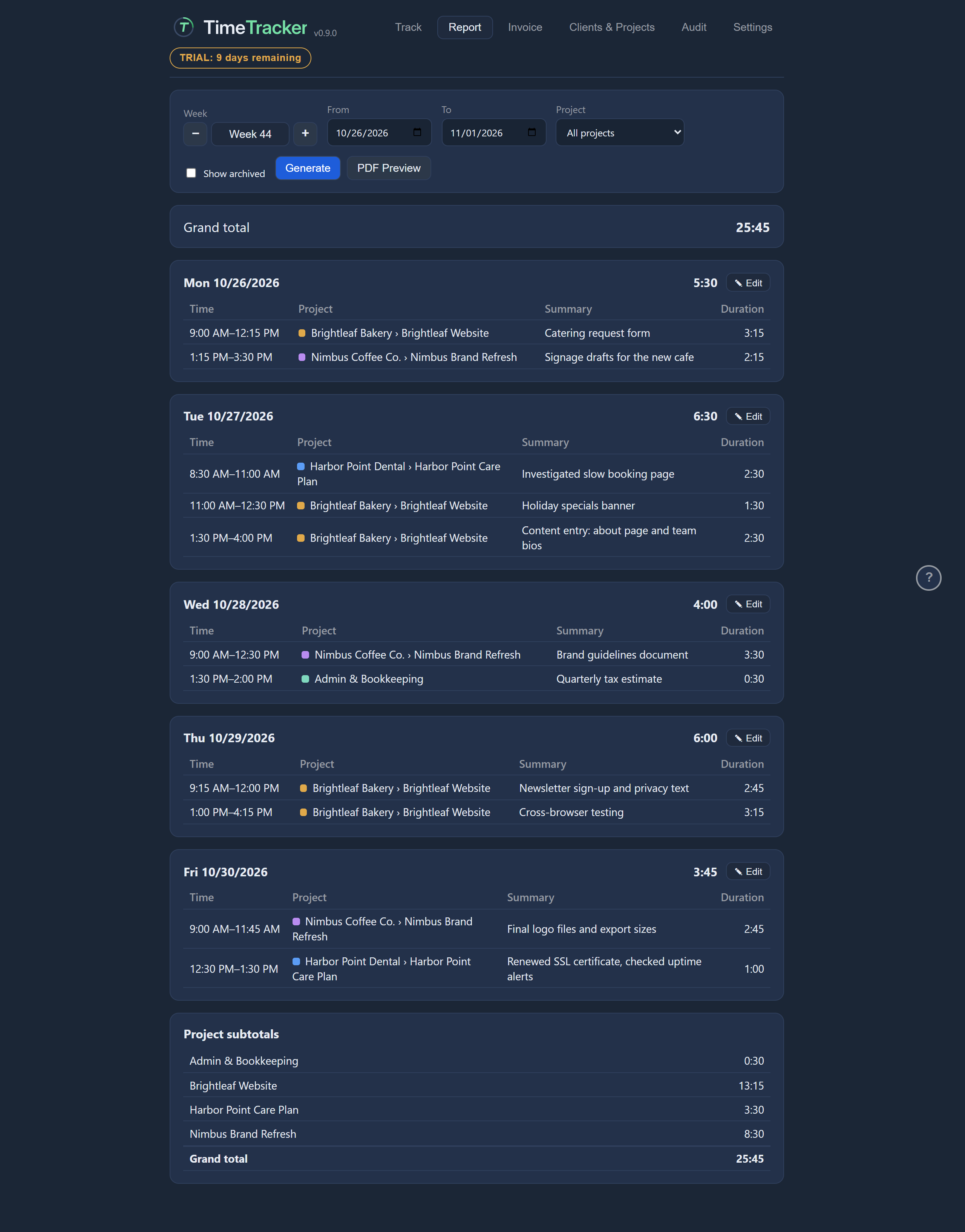
Choose what the report covers: a week or any range of dates, and optionally a single project. Then press Generate.
Example. Maya sets October as the range, picks "Brightleaf Website" and presses Generate to get Brightleaf Bakery's monthly report.
Report dates
The first and last day the report covers.
Example. Brightleaf Bakery wants a report for 1 to 31 October, so Maya sets those as the first and last day.
Report day
One day's entries and its total. The badge shows whether that day's time has been billed.
Example. Maya scans each day of the week to check that nothing looks too long or too short before she sends it.
Day total
Hours worked on this day.
Example. Maya sees Thursday's total is only 2 hours and remembers she forgot to start the timer after lunch.
Edit day
Opens this day's entries so you can edit them, delete them, or mark them do not bill.
Example. Maya spots a wrong project on Tuesday and opens that day to fix it without leaving the report.
Nothing tracked
Nothing was tracked in these dates for this choice of project. Try a wider range.
Example. Maya filtered to a project she hadn't worked on that week. She widens the range to the whole month.
Generate
Builds the report for the dates chosen, grouped by day, with each day's total and the grand total.
Example. Every Friday afternoon Maya presses Generate to see the week she has just worked.
Grand total
All the hours worked in these dates, including any time marked do not bill.
Example. Maya checks the grand total against what she expected for the month before she sends the report to Sam.
Billed badge
Whether this day's time is on an issued invoice, all of it or only some. Its tooltip lists the invoice numbers.
Example. Two days in Maya's report show as partly billed. She points at the badge to see which invoice covered them.
PDF Preview
Opens the report as a PDF, ready to send for approval. Nothing is saved until you save it from the viewer. Disabled until a report with entries has been generated.
Example. Maya opens October's Brightleaf Bakery report as a PDF, saves it, and emails it to Sam for approval before she invoices.
Project filter
Limits the report to one project. Leave it on All projects to include everything.
Example. Maya limits the report to "Brightleaf Website" so Brightleaf Bakery sees only their own job.
Show archived projects
Includes archived projects in the project list, for looking back at old work.
Example. Maya needs last spring's hours on the finished menu page project, so she includes archived projects in the filter list.
Project subtotals
Hours per project across the whole range, ending in the grand total. An 'of which not billable' line appears only when some time is marked do not bill.
Example. Maya checks how her month split: 40 hours on "Brightleaf Website", 6 on "Routine updates", and 1 not billable.
Report week
The week the report covers. Click it to jump back to the current week (on a Monday, last week is included too); the − and + beside it step one week at a time.
Example. It's Monday morning, so when Maya clicks the week, the report covers last week too and she can send it straight away.
Previous or next week
Moves the report's dates one week back or forward.
Example. Sam asks about the week before last, so Maya steps back two weeks.
Time entry
One block of time you worked: when it started and ended, how long it was, what you did, and the project (with its client) it belongs to. The coloured square is the project's colour.
Example. One of Maya's entries reads 9:00 to 10:30, 1:30, "Menu page layout", Brightleaf Website, Brightleaf Bakery, with the project's colour beside it.