Clients and projects
Keep an address book of clients, and set up projects with their own rate, colour and budget.
On this page
At a glance
- A client is a company you work for. A project is the work you track time against.
- Both are optional, but you need them for invoices and budgets.
- The rate belongs to the project, so one client can have several rates.
- Projects with no client hold your admin, marketing and learning time.
- Archive finished work to hide it. Nothing is deleted.
Clients and projects are optional, but you need them for invoices and budgets. A client is a company you work for. A project is a piece of work you track time against, usually for one client.
You manage both on the Clients & Projects tab. It lists your clients, each with the projects you do for them, and a No client section for projects that aren’t billed to anyone.
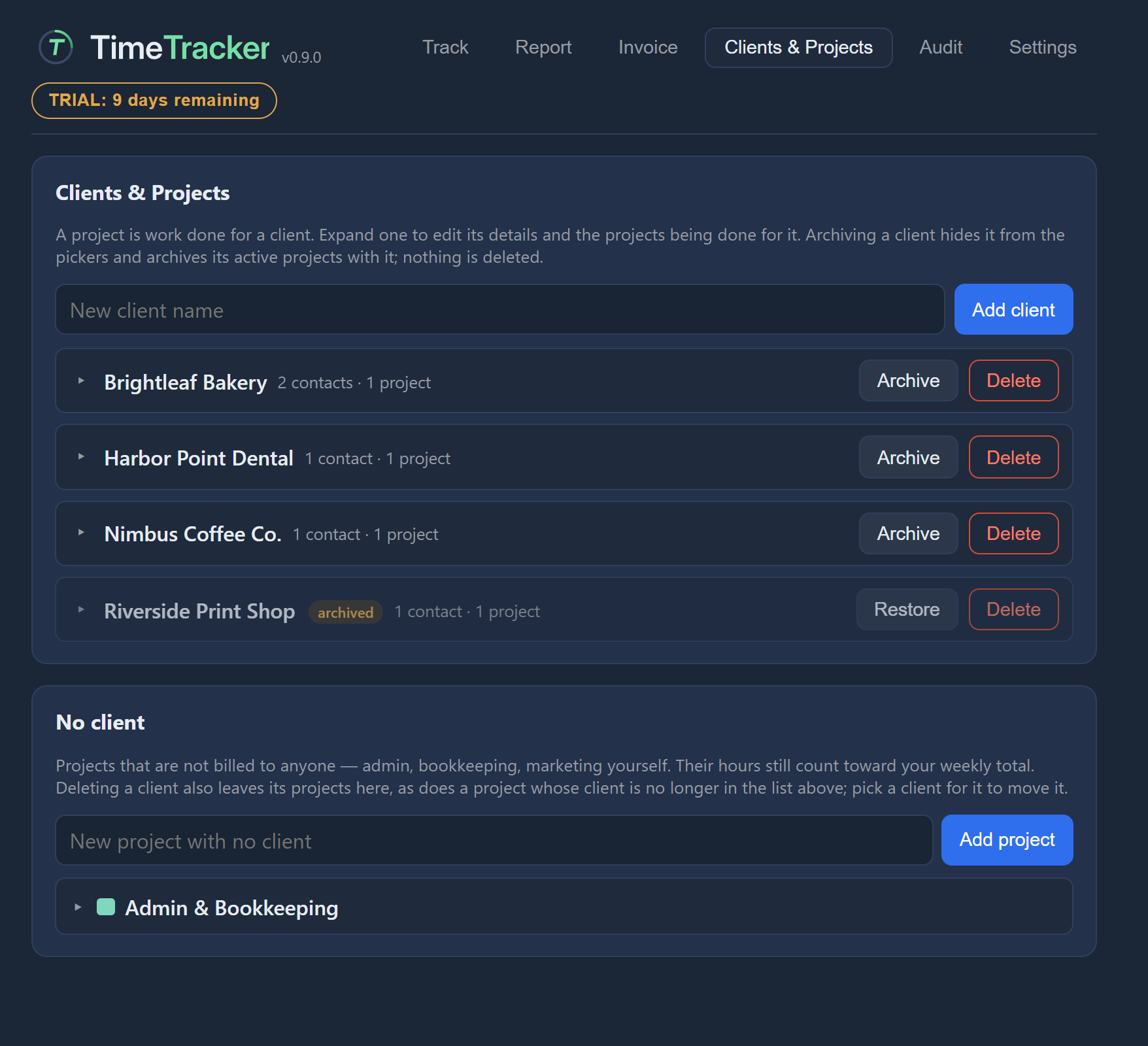
Add a client
- Type the client’s name in the box.
- Press Enter or click Add client.
- Click the client to open it and fill in its details.
The client is created with just its name. Only one client is open at a time. An open client has two sections:
| Section | What it holds |
|---|---|
| Contact information | Its name, addresses, phone numbers and the people who work there. |
| Projects | The projects you do for it. |
Add addresses
Each client has two addresses, each over as many lines as you need.
- Mailing address: where the company is.
- Billing address: where its invoices are addressed. Invoices use this one, or the mailing address if there is no billing address.
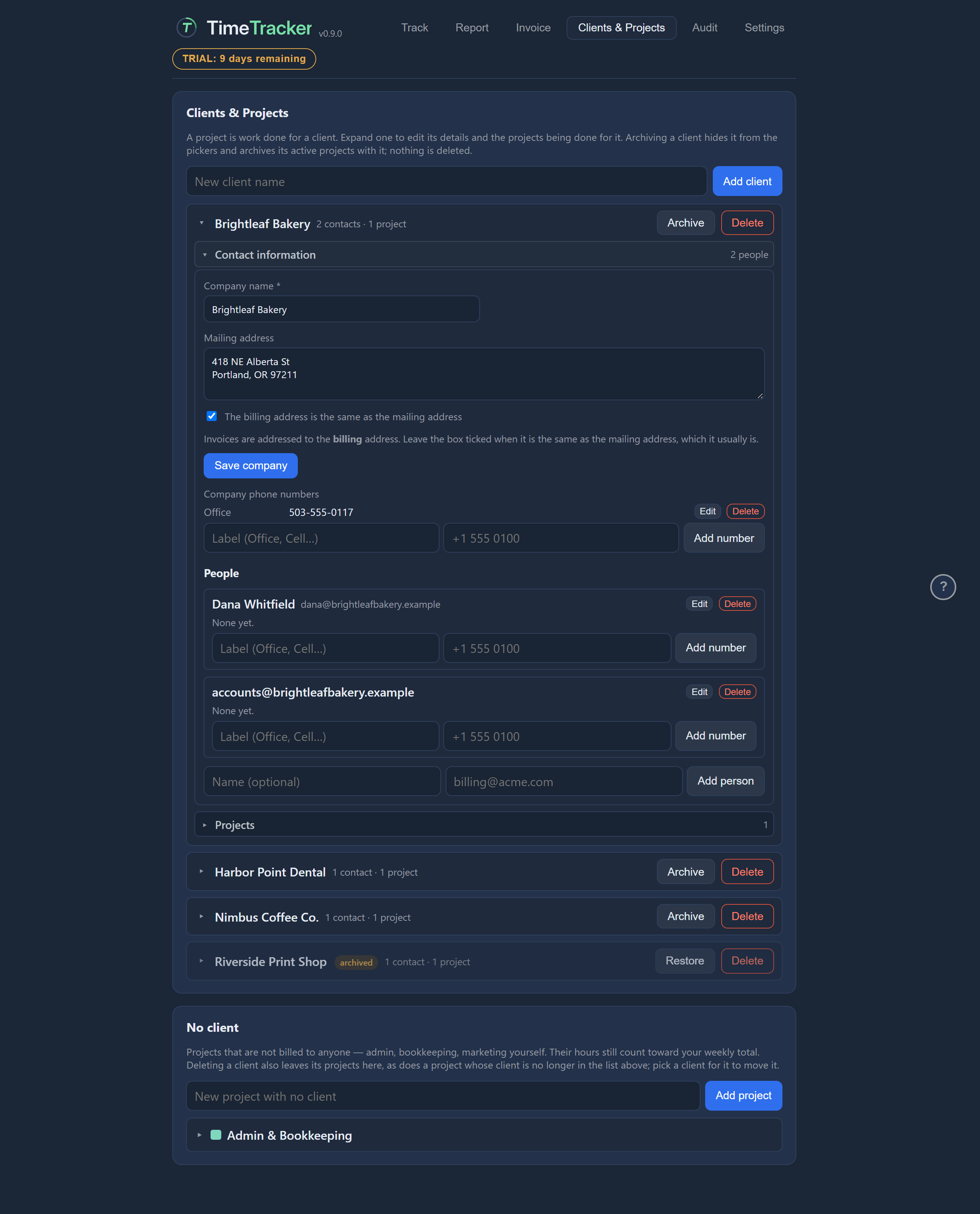
If both are the same, tick the box that says so. TimeTracker then uses the mailing address for invoices and doesn’t store a separate billing address.
Add phone numbers
A client can have phone numbers for the company itself. Each person at the company keeps their own phone numbers separately.
Add people at a client
A client can have as many people as you need. Add each one by name, by email address, or both. A shared inbox such as accounts@harbourbakery.example doesn’t need a name.
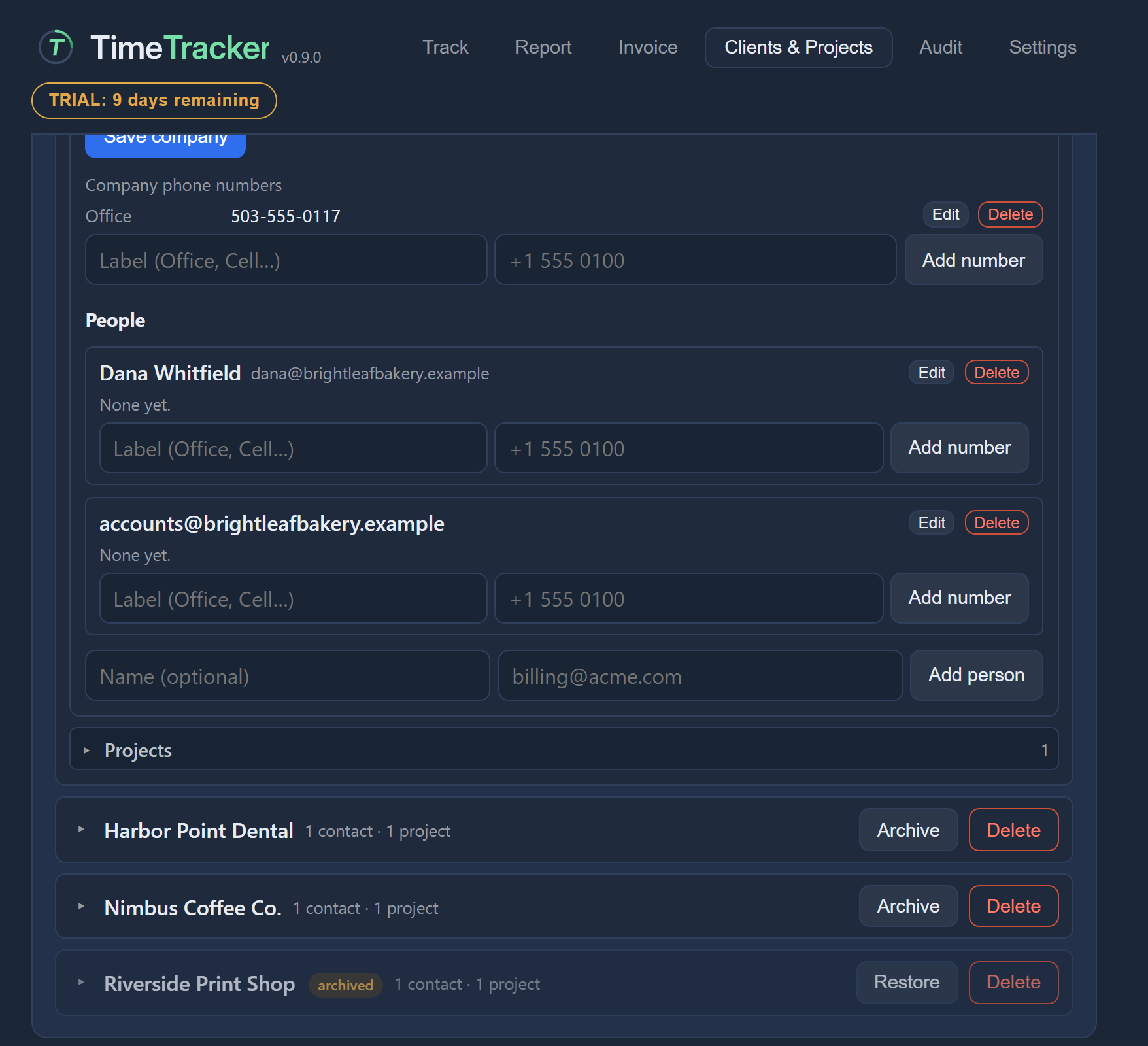
When you make an invoice, you choose which of these people it is addressed to. See Who the invoice is addressed to.
To change a person, press their edit button. Their details load into the form, where you save the change or cancel it. To remove someone, press delete and confirm.
Add a project
- Open the client and its Projects section.
- Type the project’s name.
- Press Enter or click Add project.
If the client already has a project with that name, TimeTracker tells you and doesn’t create a second one.
You can also create a project from the Track tab by typing a new name in the project box. See Choose a project.
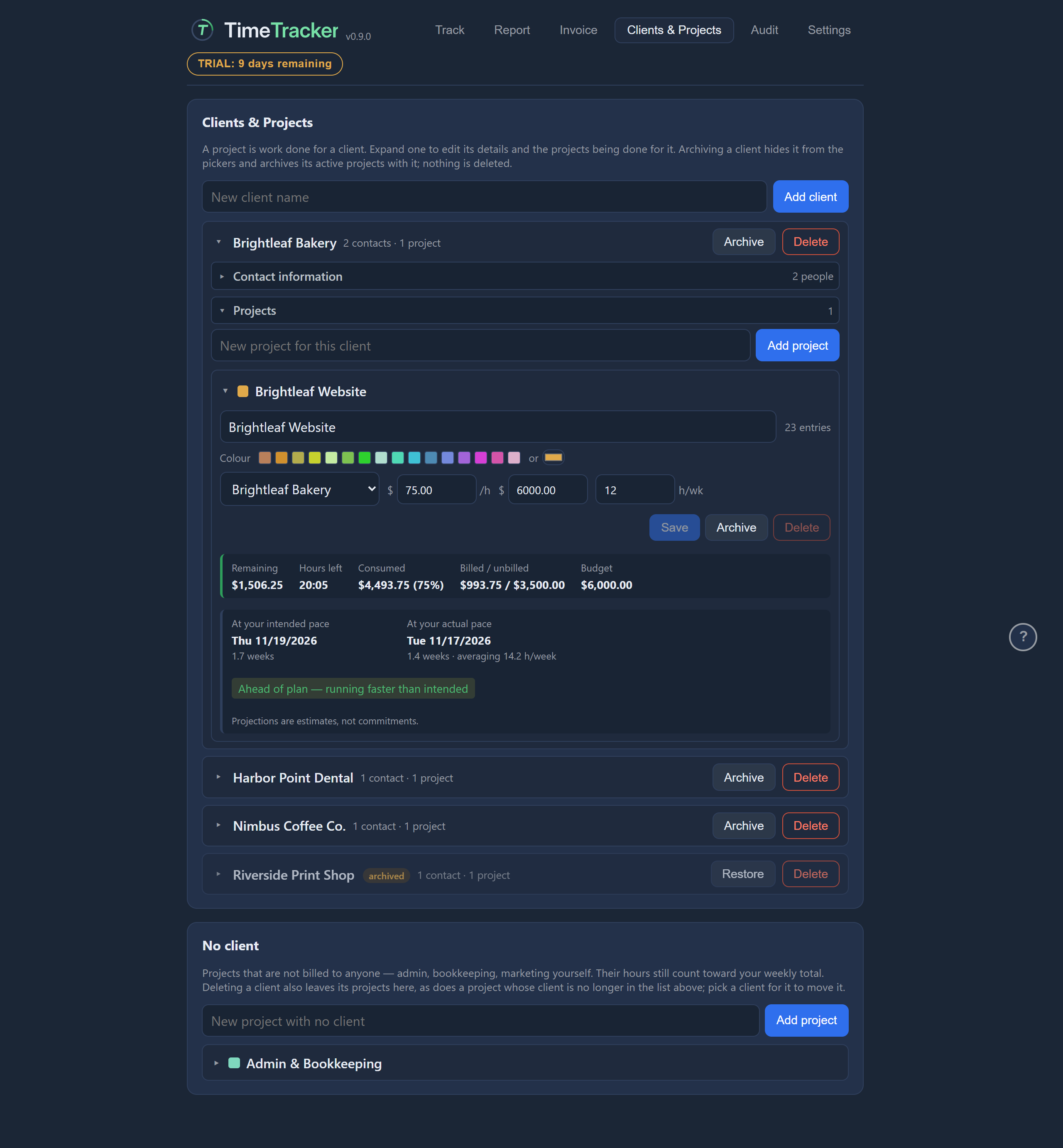
Click a project to open its settings. Only one project is open at a time. Each project has its own:
- name
- client
- hourly rate
- budget, for fixed-price work (see Budgets)
- intended pace
- colour
Pick a project colour
Each project has a colour, shown beside its entries so you can tell the work apart at a glance. Pick one of the colours offered, or choose any other colour.
Set an hourly rate
Give a project an hourly rate if you want to invoice its hours. The rate belongs to the project, not the client, so one client can have projects at different rates. Press Save after you change it.
Set an intended pace
The intended pace is the number of hours a week you plan to work on a project. TimeTracker uses it to forecast when the budget will run out if you keep to that pace. See Budgets.
Track time that isn’t for a client
Some of your time isn’t for a client: admin, marketing, learning. Make a project with no client for it. These projects sit in the No client section. Type the name there and add it.
Archive a client or project
When a job is finished, archive the project, or the whole client, to hide it from the lists you pick from. Archiving deletes nothing. All the history, including its time and invoices, is kept.
| Action | What happens |
|---|---|
| Archive a client | Also archives its active projects. Before it does, TimeTracker tells you how many projects and how many unbilled hours are affected. |
| Restore a client | Brings it back, along with the projects that were archived with it. Projects you had archived yourself stay archived. |
| Restore a project | Brings it back into the lists. |

Delete a client or project
Archiving is usually the better choice. If you do delete:
| Delete | What happens |
|---|---|
| A client | Its projects and their time entries are kept. The projects move to No client. Invoices already issued keep their saved copy of the client’s details. |
| A project | Only possible if it has no time entries. If it has any, archive it instead. |