TimeTracker help
Short, step-by-step guides with pictures and an example in each. New here? Start with Getting started.
On this page
I want to…
- Start timing my work
- Move from one task to the next
- Fix a time I got wrong
- Send my client a timesheet to approve
- Make an invoice
- Record that an invoice was paid
- See how much of a fixed-price job is left
- Back up my data
- Move to a new computer
- Load my licence
Get started

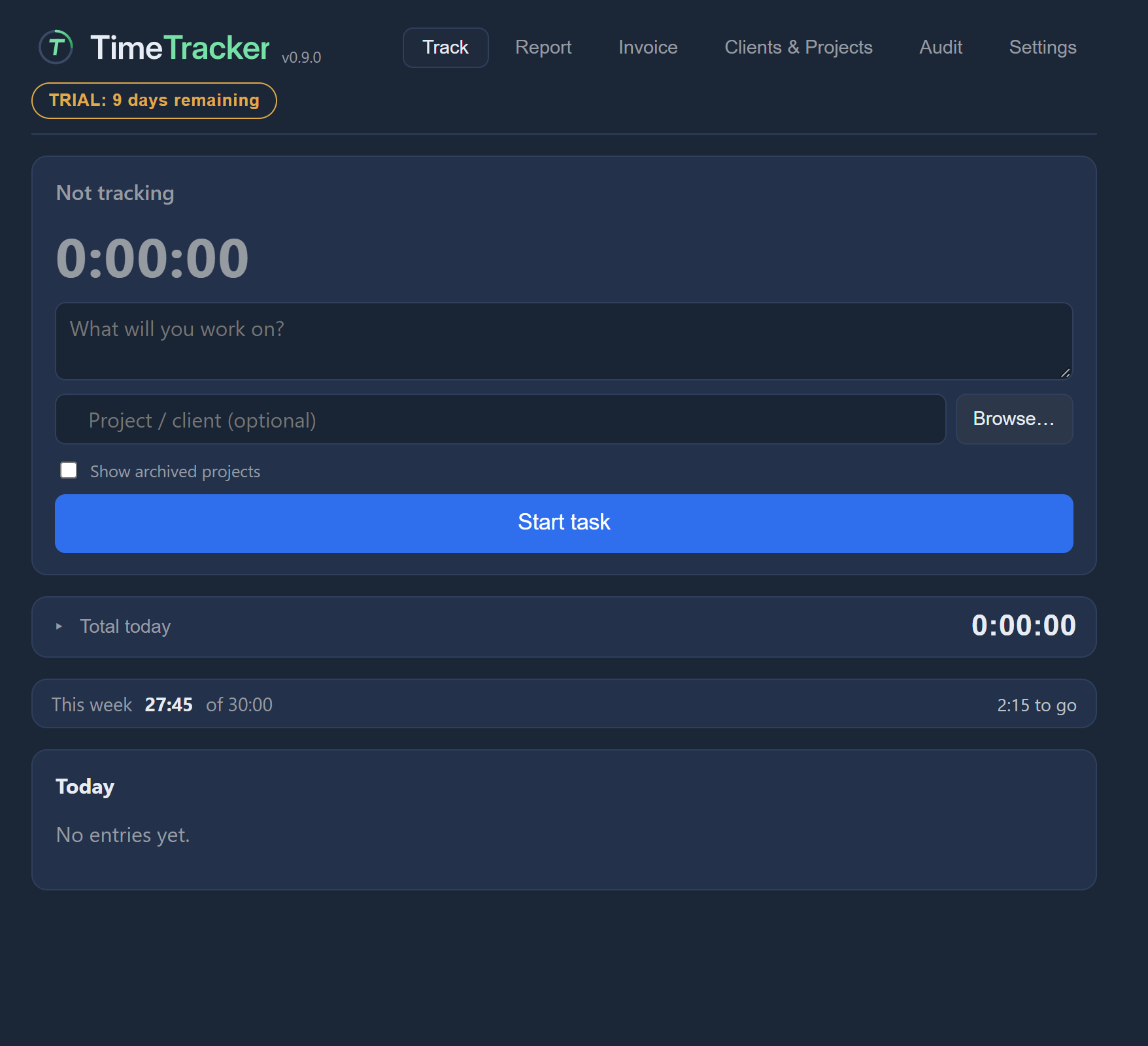 Getting started
Everyday use
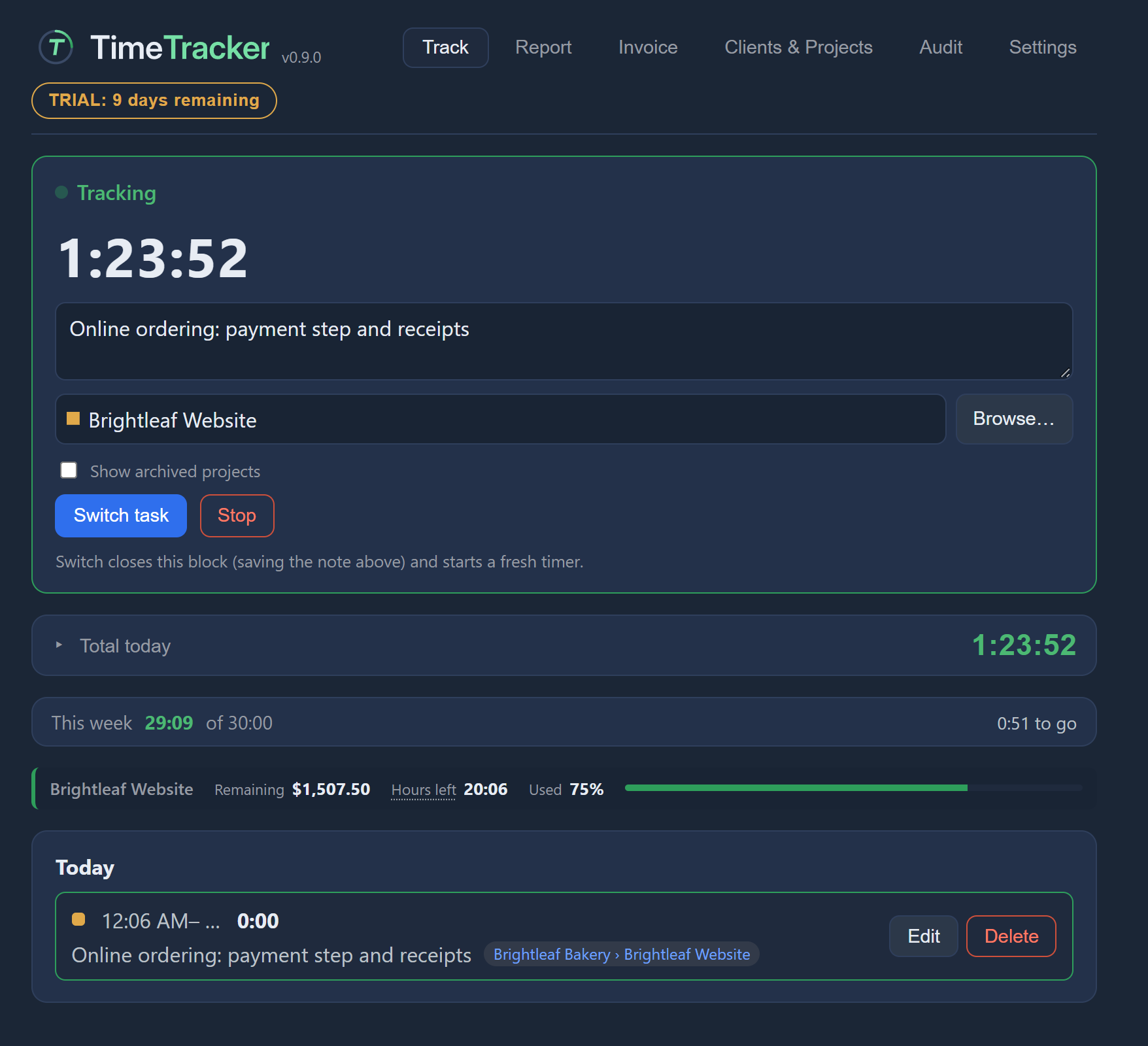 Tracking timeStart, switch and stop the timer, write a note on your work, and fix past entries.
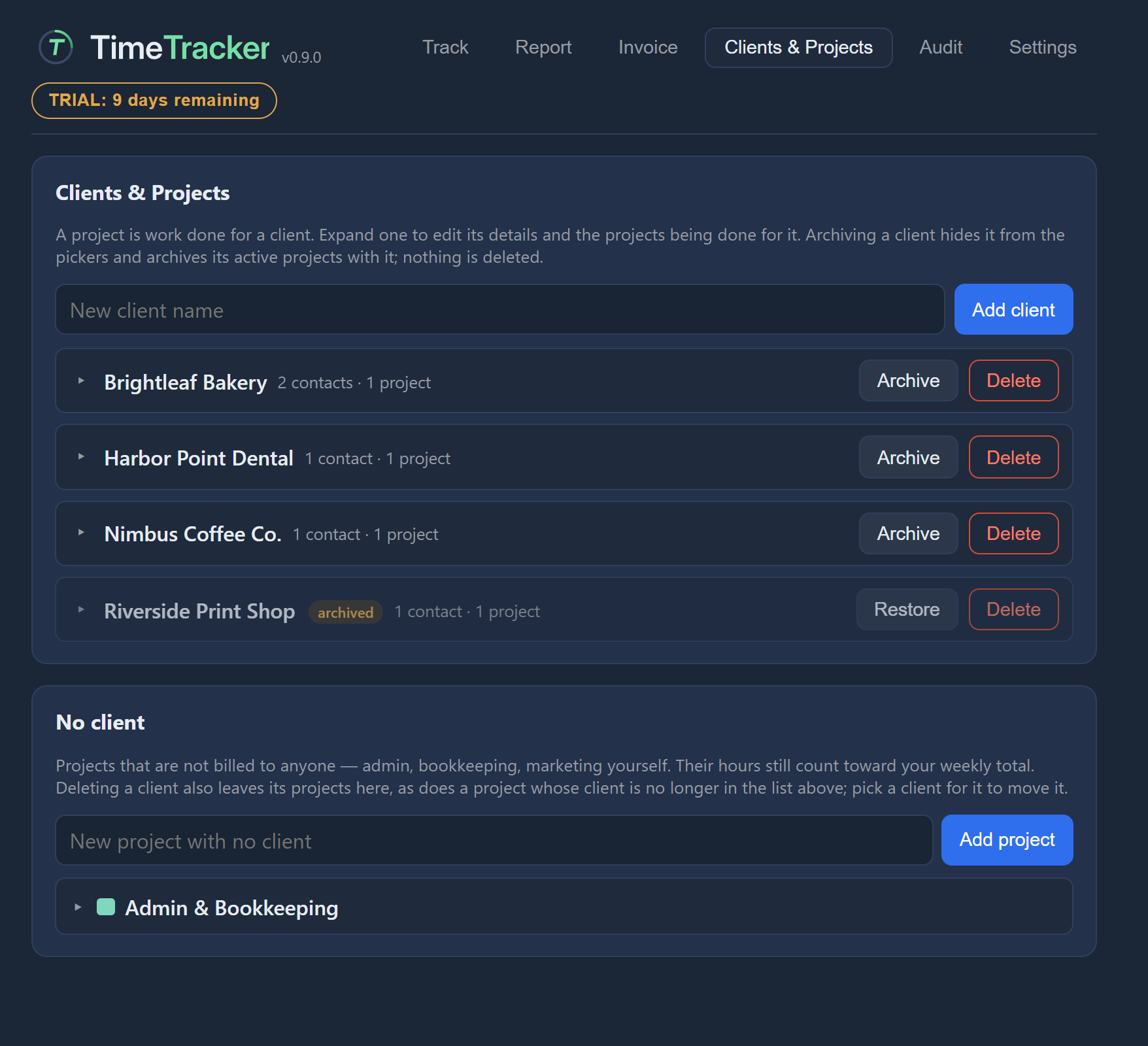 Clients and projectsKeep an address book of clients, and set up projects with their own rate, colour and budget.
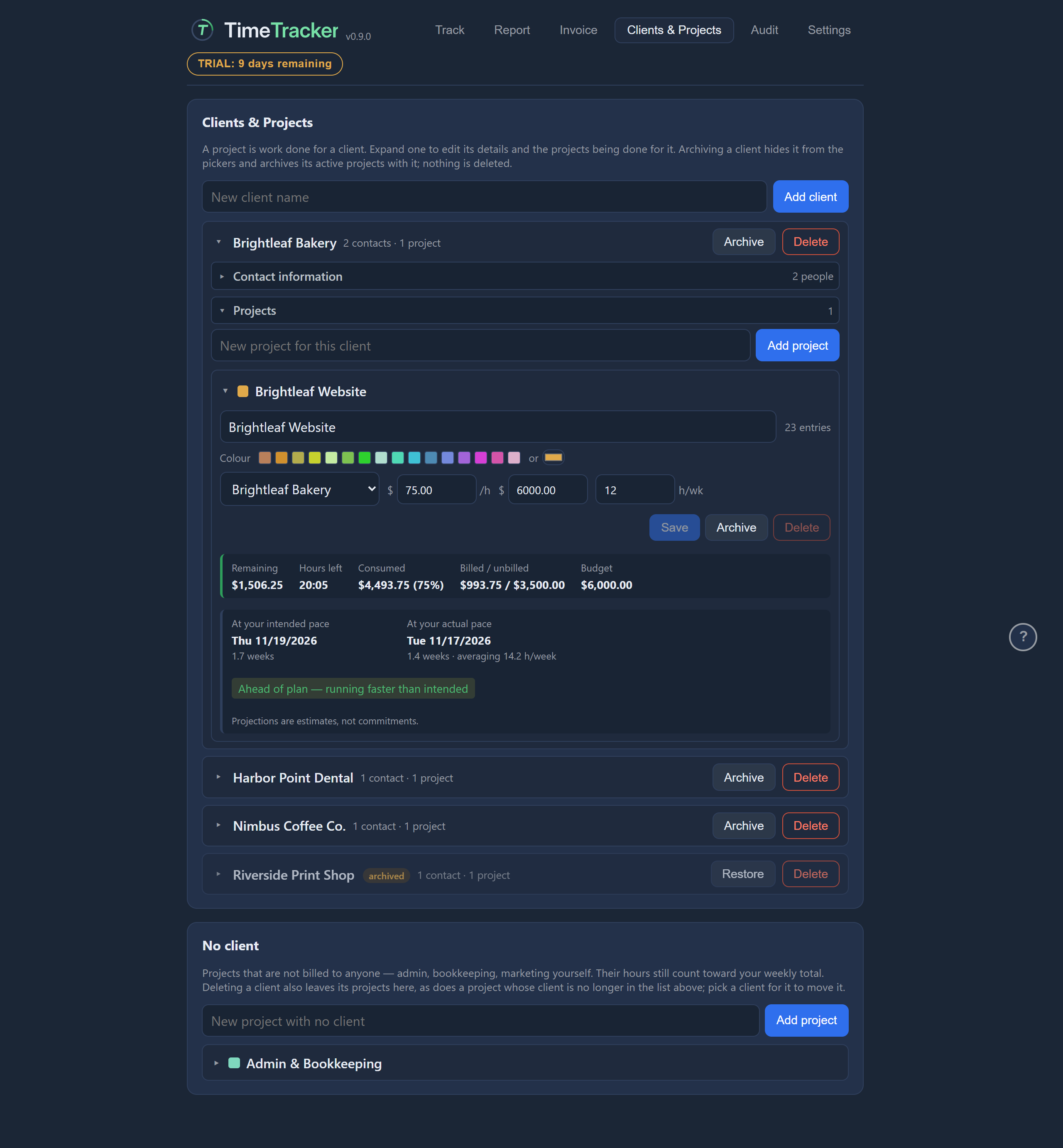 BudgetsSet a budget on a fixed-price project and see how much is used, how much is left, and when it will run out.
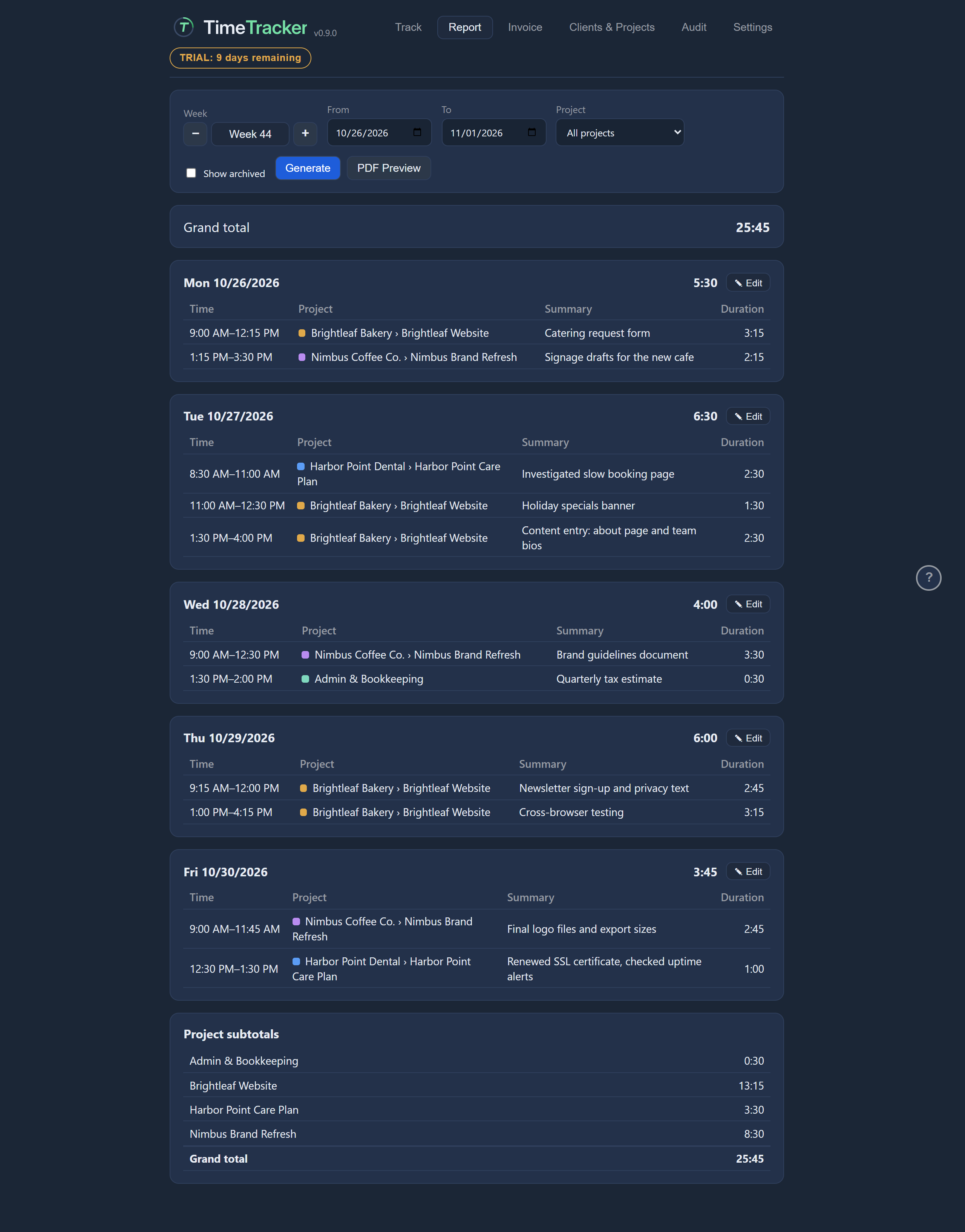 ReportsMake a report of your hours for any date range and export it as a PDF your client can approve.
Billing
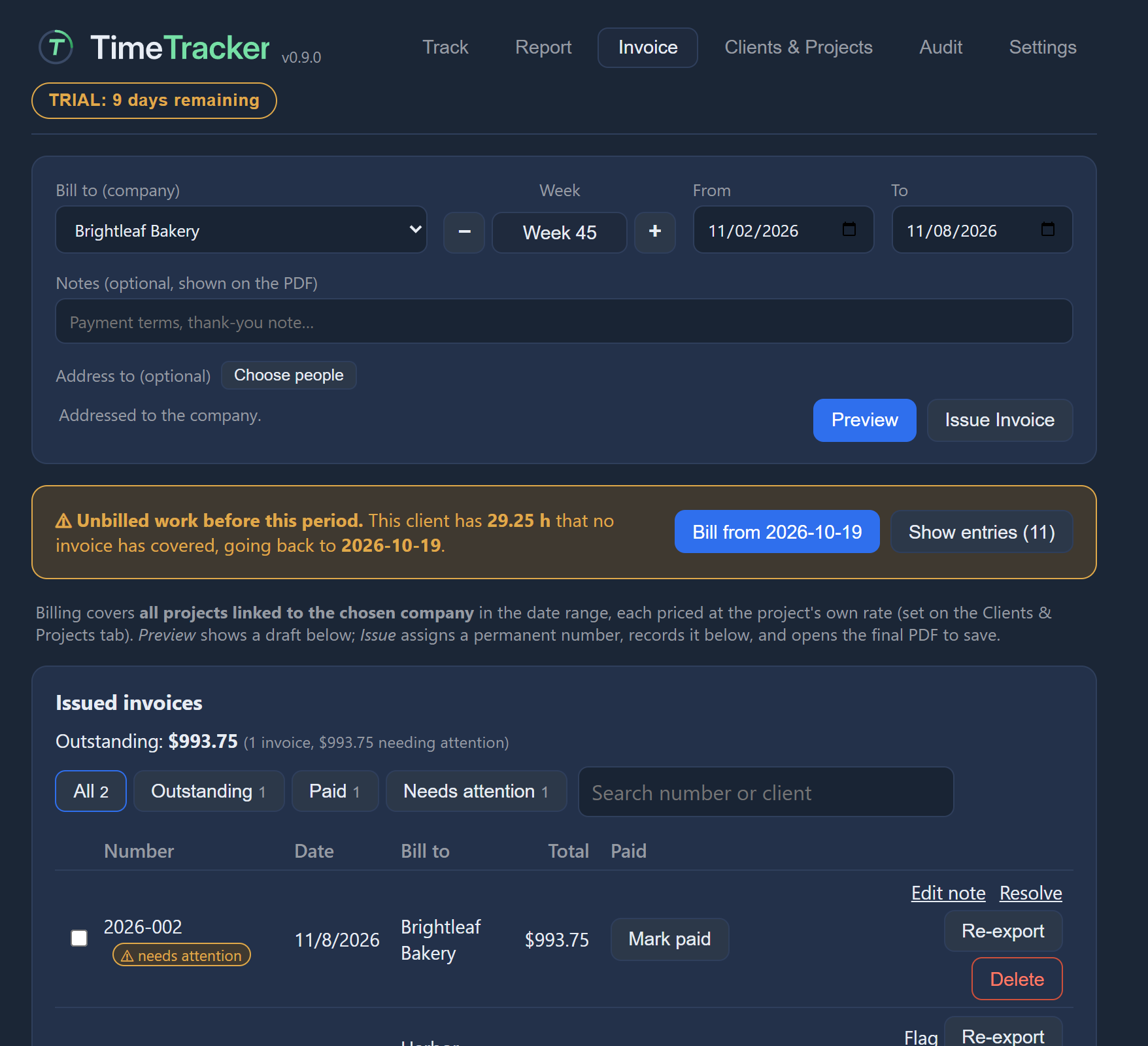 Invoices
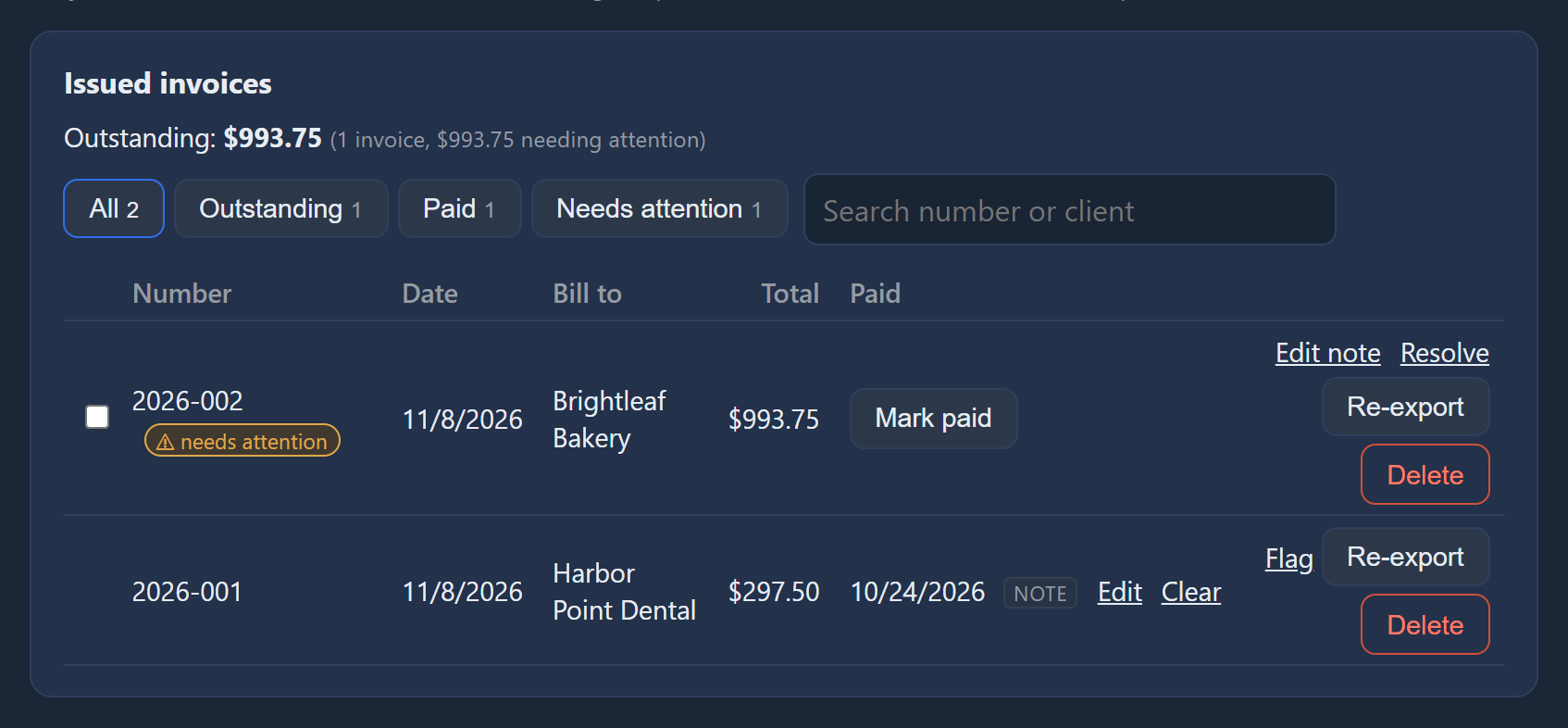 Payments
Your data
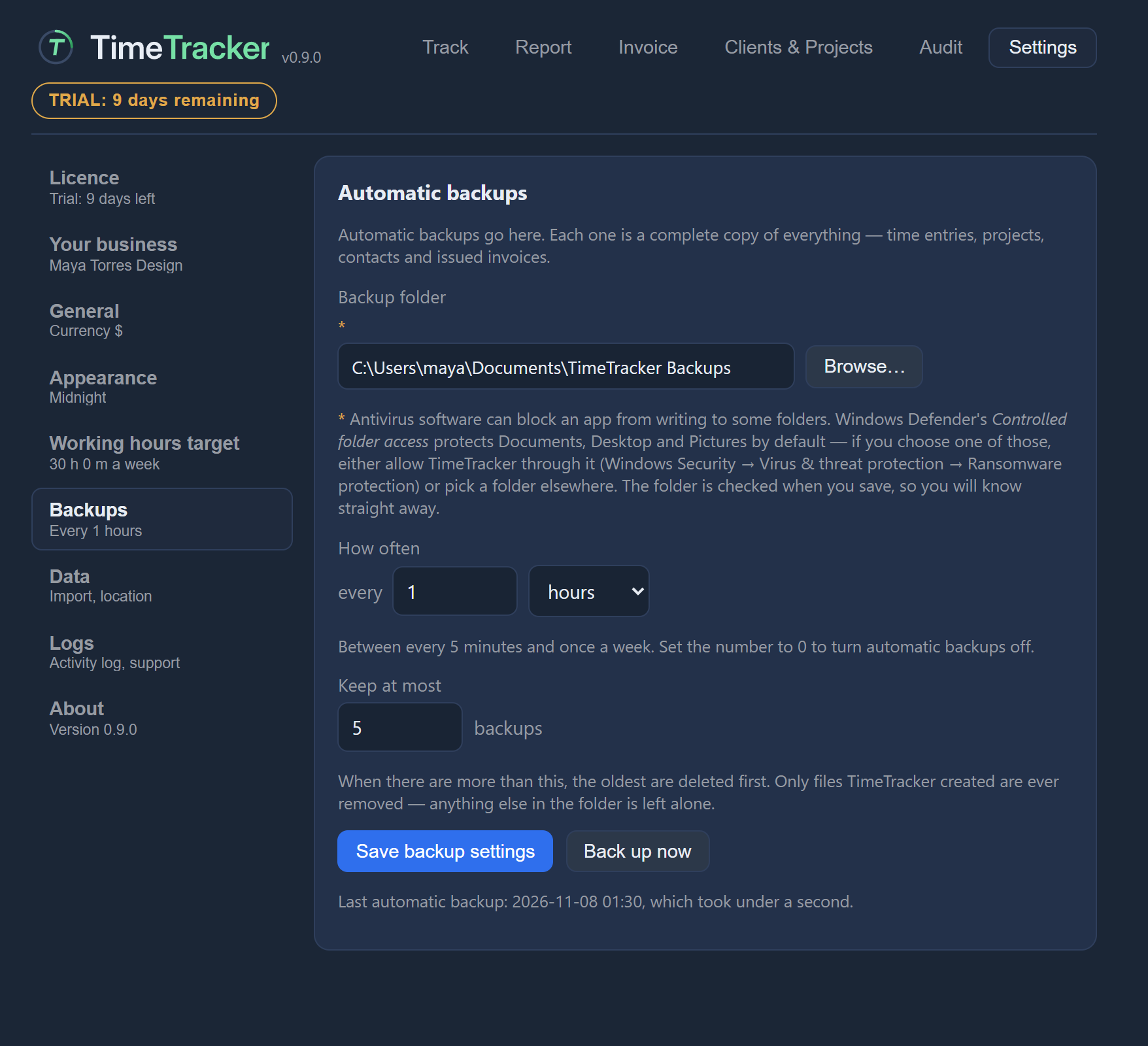 Backups and restoreSet up automatic backups to a folder you choose, and restore your data from a backup.
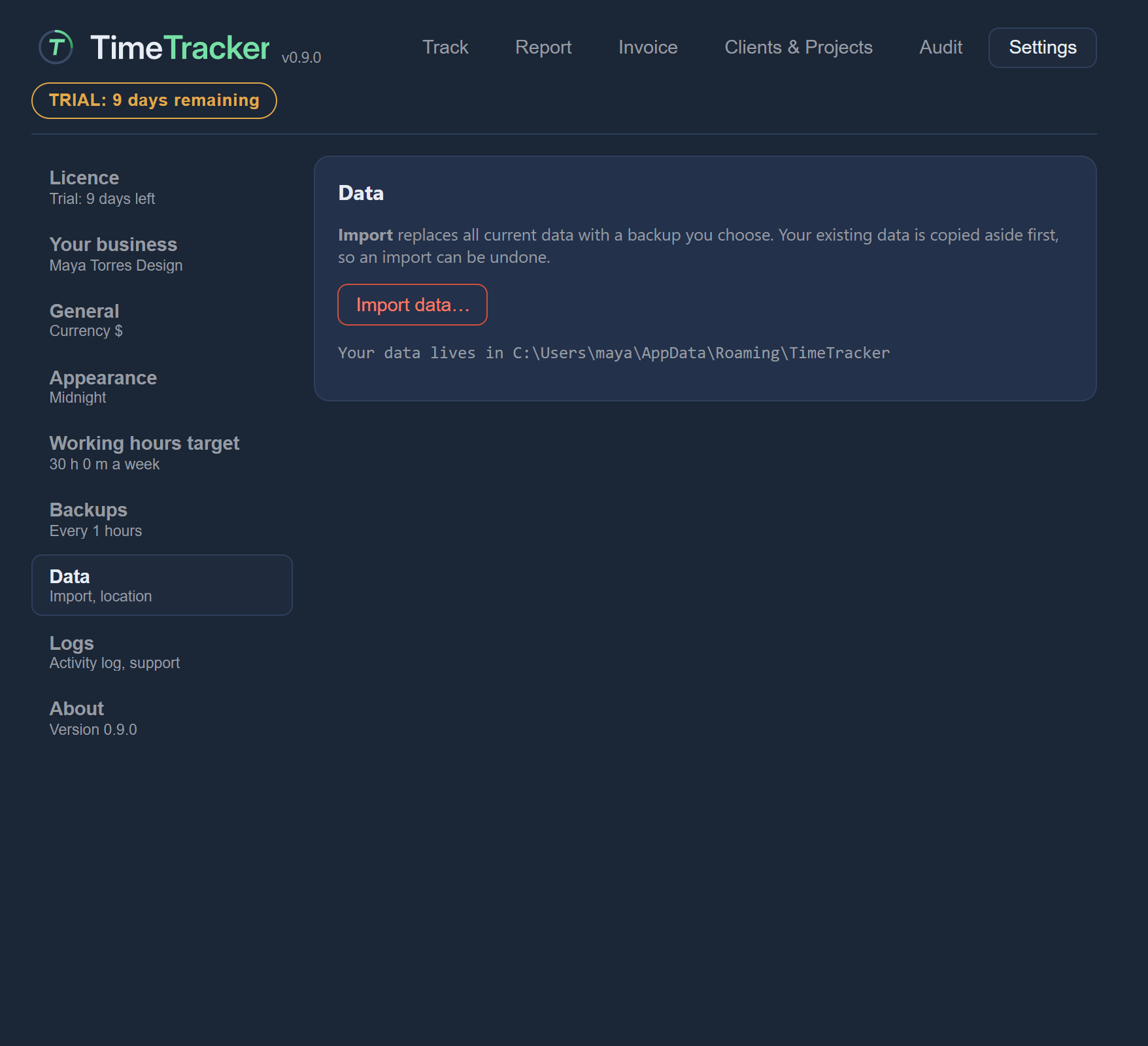 Moving to a new computerTake your clients, projects, entries and invoices with you to a new Windows computer.
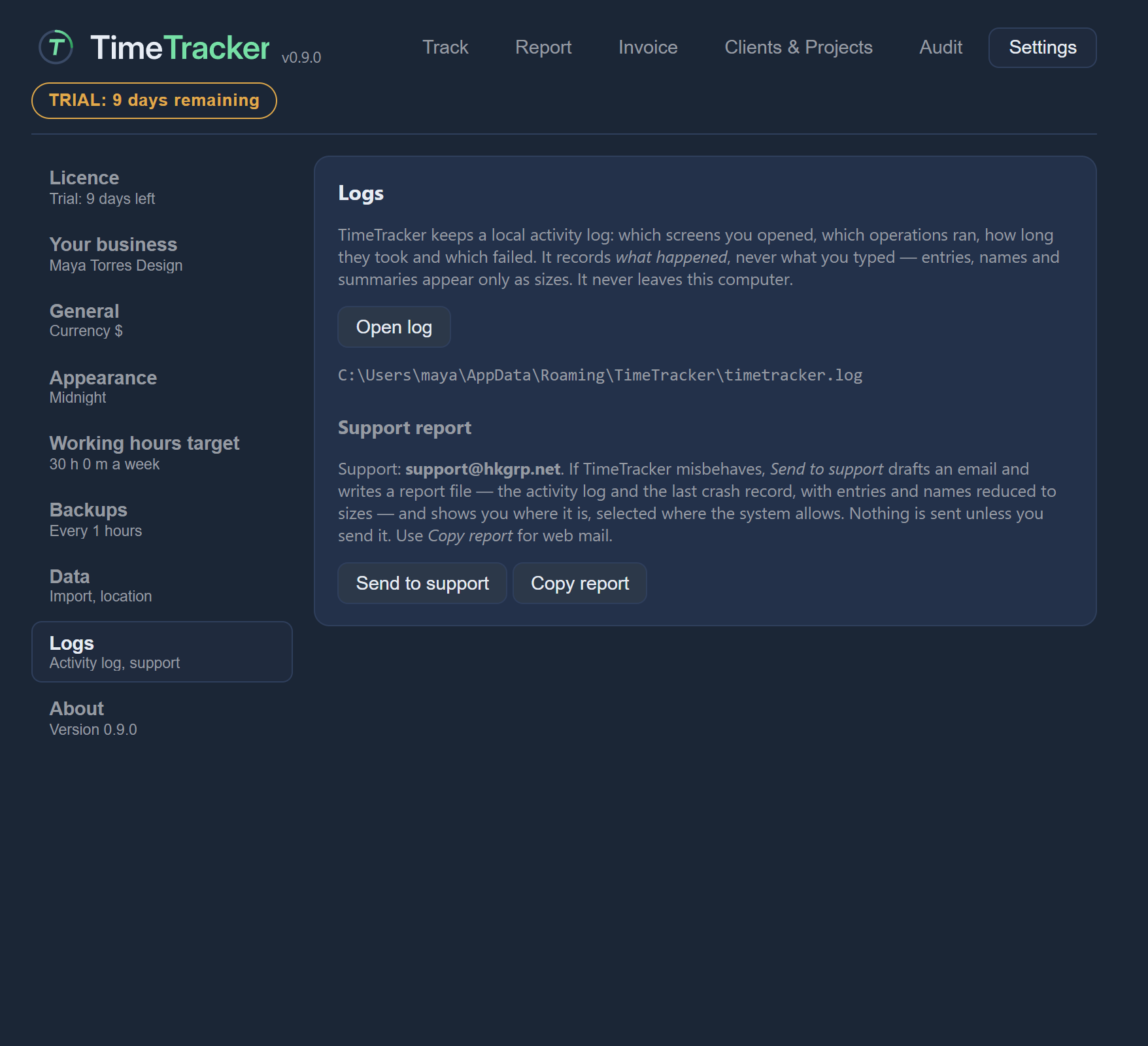 Your data and privacyWhere TimeTracker keeps your data, what it never sends, and what its local log records.
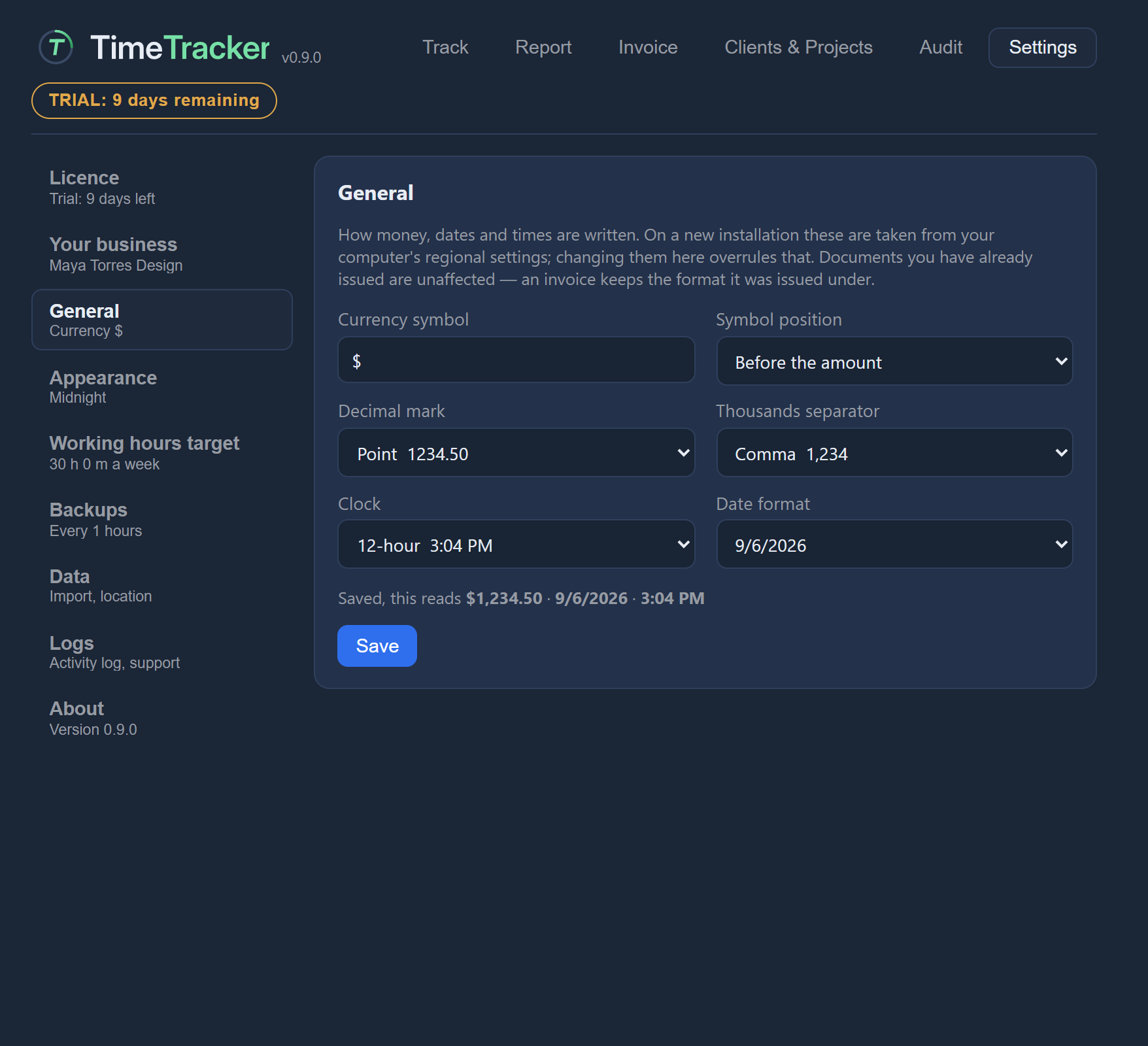 SettingsYour business details, weekly and daily targets, currency and date formats, themes, and where your data is kept.
Licence and support
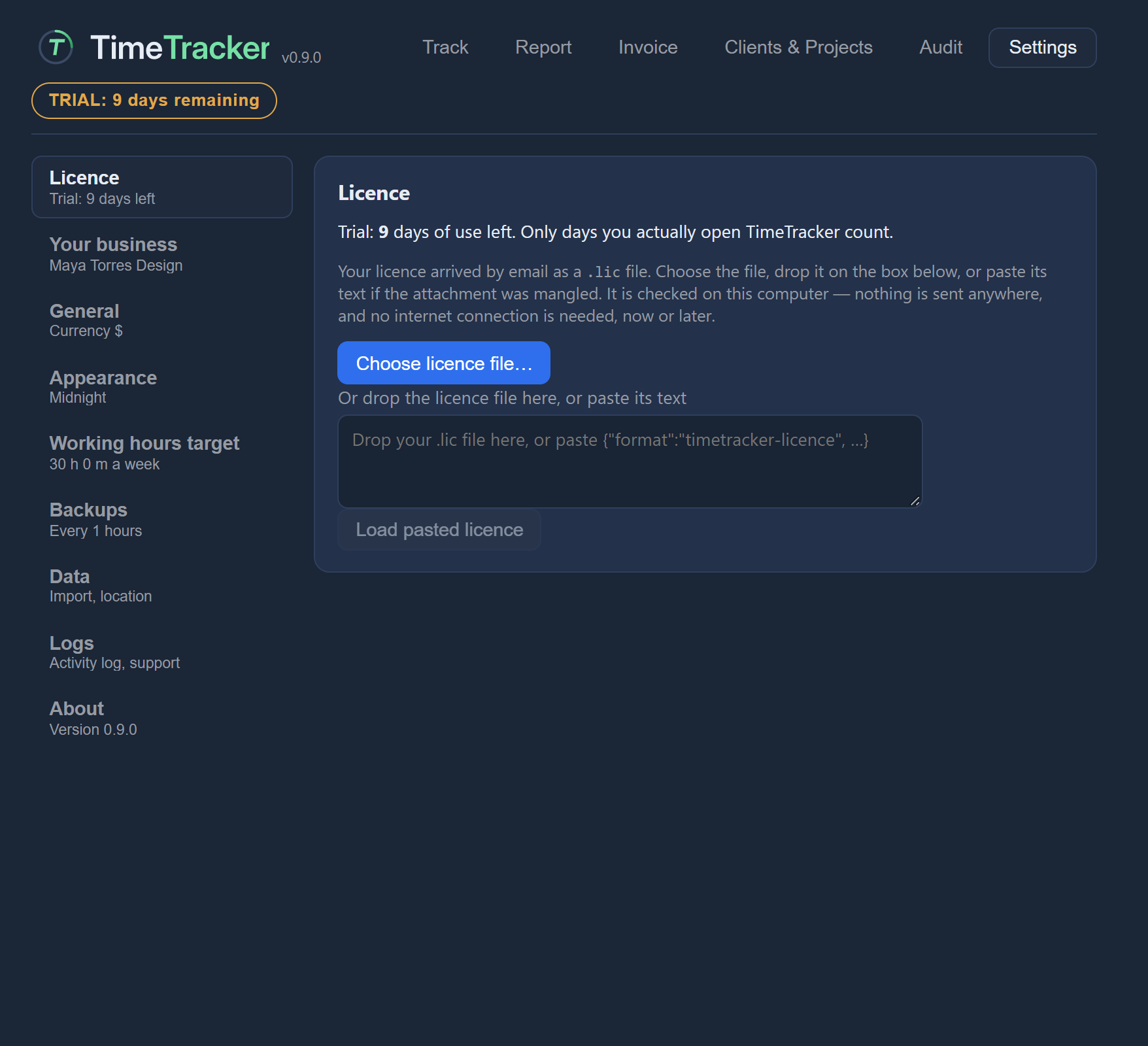 Trial and licence
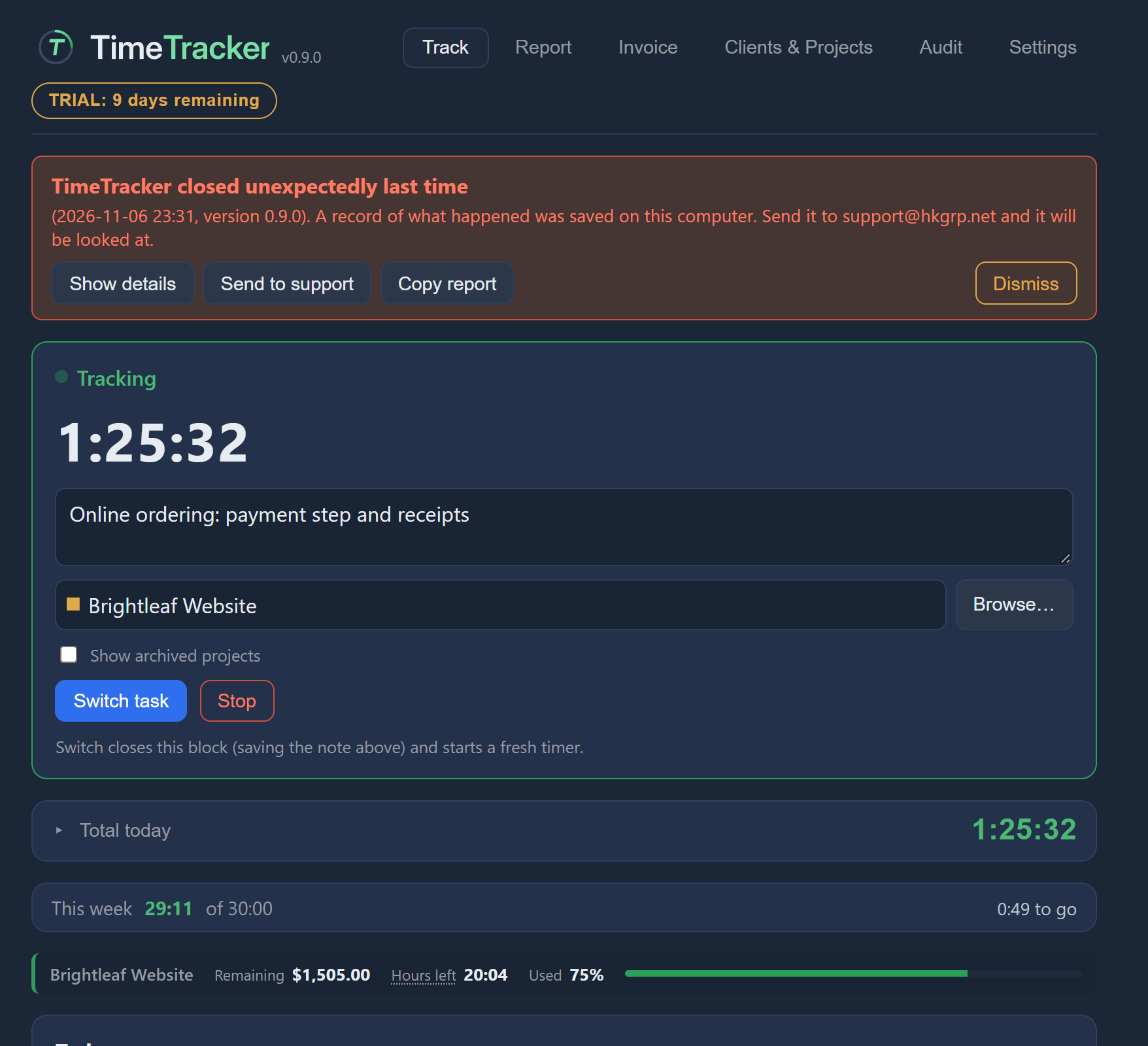 Troubleshooting
Screen by screen
Every button and box in the app, explained one screen at a time. In TimeTracker, press the round? button in the bottom-right corner, then click any control to open its entry here.
Help without the internet
TimeTracker works offline, and so can its help. Download every page on this site as one zip file, unzip it anywhere, and open index.html in your browser. It works without a connection and loads nothing from the internet.