Moving to a new computer
Take your clients, projects, entries and invoices with you to a new Windows computer.
On this page
At a glance
- Your data doesn’t follow you by itself: there is no account and no cloud.
- Two ways to move it: import a backup (easiest), or copy the data file.
- Both take a few minutes.
- Your trial’s day count comes with your data.
Because TimeTracker has no account and no cloud, your data doesn’t follow you to a new computer by itself. You move it yourself, in one of two ways.
First, install TimeTracker on the new computer.
| Way | Import a backup | Copy the data file |
|---|---|---|
| How | Make a backup on the old computer and import it on the new one. | Copy timetracker.db into the data folder on the new computer. |
| Backup settings | The new computer keeps its own. | They come with the file. |
| Good to know | The easiest way. | Works best before you first open TimeTracker on the new computer. |
Import a backup (easiest)
-
On the old computer, make a fresh backup: Settings → Backups → Back up now. See Backups and restore.
-
Copy the backup file to the new computer, for example on a USB stick.
-
On the new computer, open TimeTracker and go to Settings → Data.
-
Press Import data…, pick the backup and confirm.
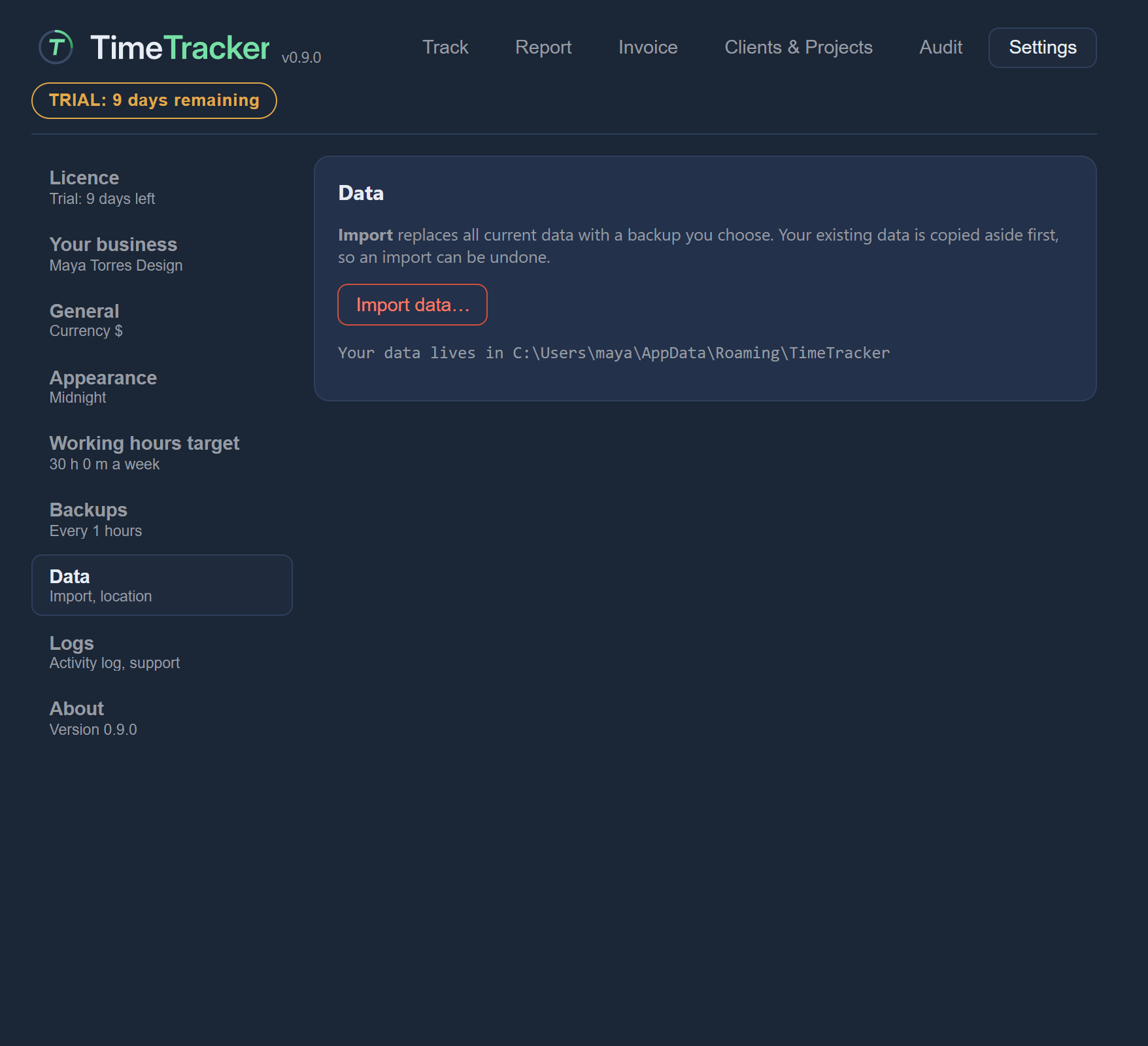
Import data is on the Data page.
Copy the data file
All your data is in one file called timetracker.db. You can copy it straight into the data folder on the new computer.
- On the old computer, open Settings → Data. It shows exactly where your data lives. It is usually
C:\Users\<you>\AppData\Roaming\TimeTracker\. - Close TimeTracker on both computers. The app must be closed while you copy.
- Copy
timetracker.dbfrom the old computer into the same folder on the new computer. - Open TimeTracker on the new computer.
Your trial’s day count is stored in this file, so it comes with it.