Payments
Mark invoices paid, record one payment for several invoices, and see what is still owed.
On this page
At a glance
- Mark an invoice paid with the date the money arrived.
- Record one transfer that pays several invoices from one client.
- Flag an invoice that needs a follow-up, such as a short payment.
- See what is still owed, one figure per currency.
When a client pays you, record it in TimeTracker so you always know which invoices are paid and which are still waiting. All of this happens in the list of issued invoices on the Invoice tab.
Mark an invoice paid
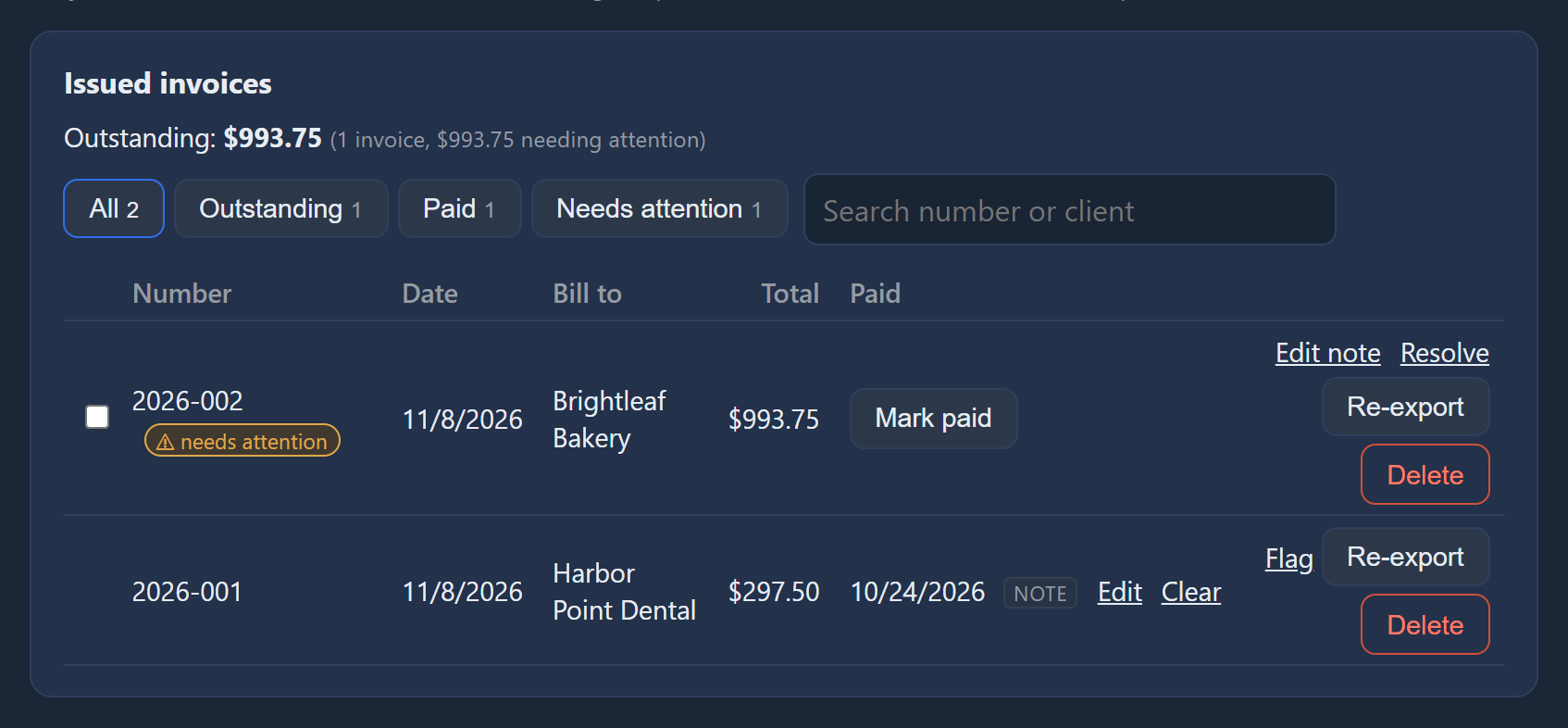
- Find the invoice in the list. You can search by number or client name.
- Press its button to mark it paid.
- Enter the date the money arrived. The date is required.
- If you like, add a note, such as a cheque number, a partial payment, or which account it landed in.
- Save the payment.
Change or clear a payment
A paid invoice shows its payment. If it has a note, point at it to read it.
| Button | What it does |
|---|---|
| Edit | Change the date or the note. |
| Clear | Mark the invoice unpaid again. |
Record one payment for several invoices
Sometimes a client pays several invoices with one transfer. You can record that as one payment. One payment covers invoices from one client.
- In the list, tick the invoices the payment is for. To start again, clear the selection.
- Press Record payment.
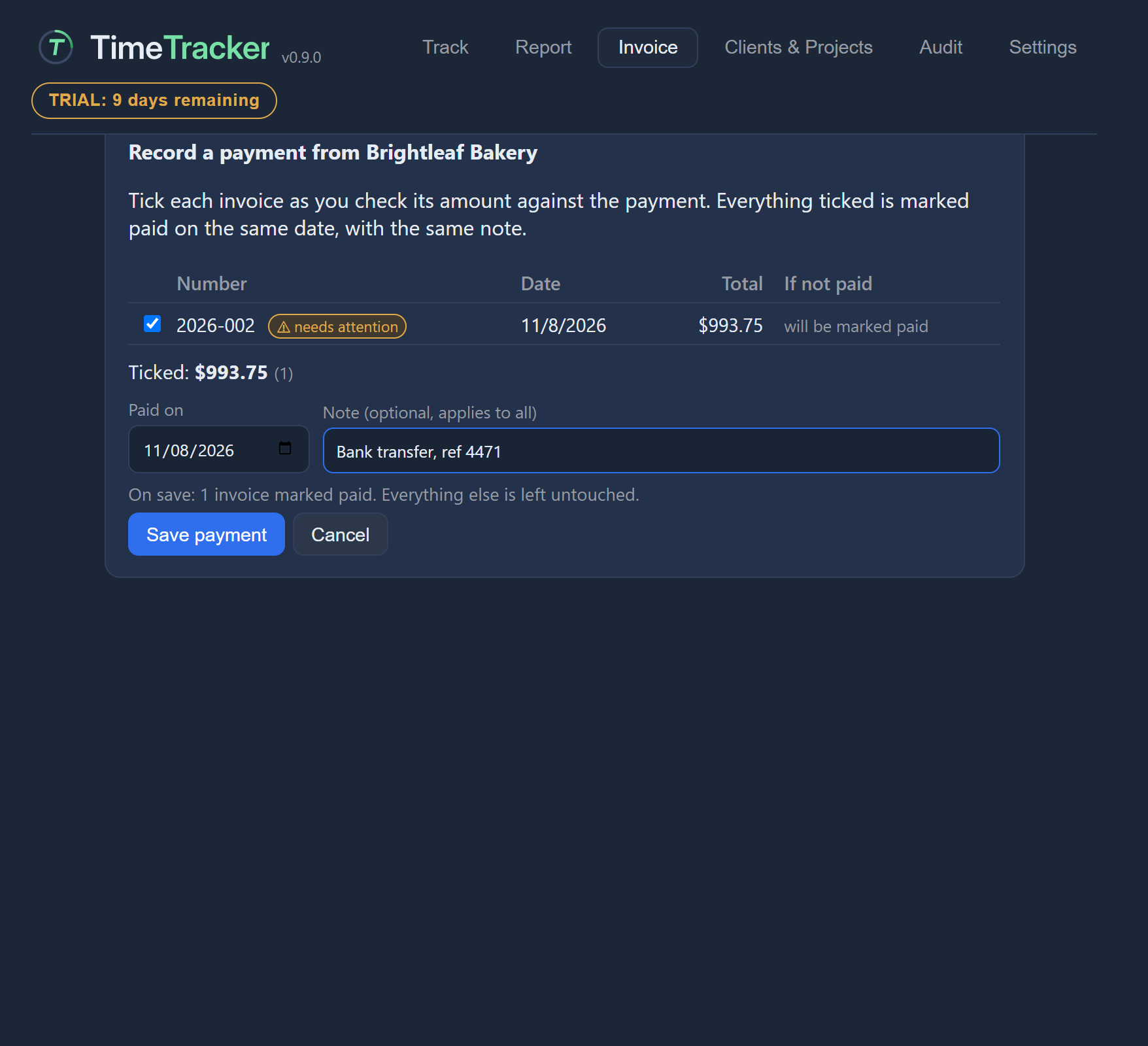
- Enter the date the payment arrived and, if you like, a note such as a transfer reference. The date and note apply to every invoice in the payment.
- Check each invoice’s amount against the payment, and tick it once it matches.
- For any invoice the payment doesn’t cover, choose Not in this payment to leave it as it is, or Needs attention to flag it, with a reason.
- Press Save payment.
Flag an invoice that needs attention
Flag an invoice when something about it needs a follow-up, such as a client paying short or paying into the wrong account. A flag is separate from paid: an invoice can be paid and still flagged.
- Press the invoice’s flag button.
- Write what needs attention. The reason is required, because it’s what makes the flag useful.
- Save the flag.
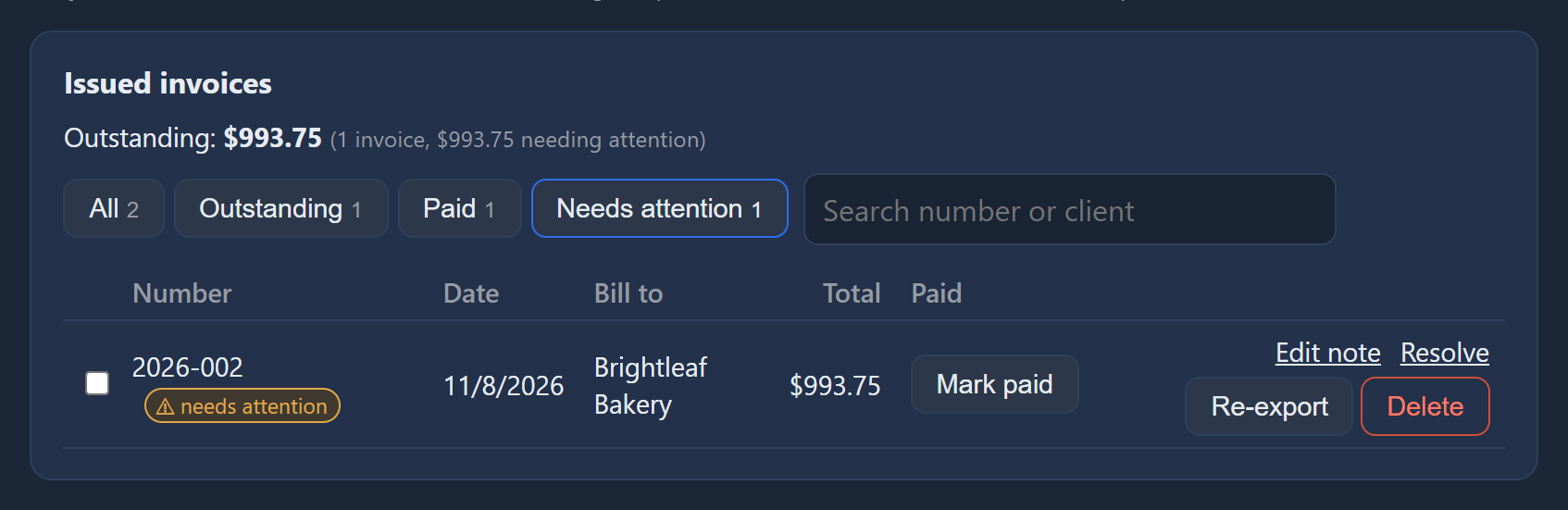
A flagged invoice shows a badge. Point at it to read the reason.
See what is still owed
With the list of issued invoices, TimeTracker shows what is still owed on unpaid invoices. There is one figure per currency.
In brackets beside it you see how many invoices make up that figure and, if some are flagged, how much of it needs attention.

Use the filters on the list to see just the invoices you want. The number beside each filter is how many invoices it shows.